
How to Remove a Green Screen From a Photo (Free)
To remove a green screen from a photo, use a chroma key tool: it makes every pixel close to the backdrop colour transparent, and you set how close with a tolerance. Start around the middle, raise it until the green is gone, remove the green spill, and save as PNG to keep the transparency. The free Chroma Key Remover does this in your browser, with no sign-up, and your photo is never uploaded.
The short answer
- Tool: Chroma Key Remover. No AI model, so it runs instantly.
- Settings: Tolerance from 1 to 150 (default 55), Edge softness from 0 to 60 (default 18).
- Output: a transparent PNG at the size of your photo.
- Limit: anything in your subject that matches the backdrop disappears too.
How to remove a green screen in four steps
- Drop in the photo. Open the Chroma Key Remover and add your image. Leave Pick the colour from the corners ticked if the four corners show the backdrop.
- Set Tolerance. Raise it until the backdrop goes. If the subject starts to develop holes, bring it back down.
- Clean the edge. Keep Remove colour spill ticked, and adjust Edge softness: lower for a crisp product or logo, higher for hair.
- Download. The result is a transparent PNG. To get a JPG or WebP instead, tick Put a colour behind it, because JPG has no transparency; see our guide to transparent images.
What tolerance actually does
Each pixel has a red, green and blue value, so it can be treated as a point in a 3D colour space. The tool measures the straight-line distance from each pixel to the colour you are removing. Anything within Tolerance becomes fully transparent. Anything within Tolerance plus Edge softness becomes partly transparent, and the rest stays as it was.
That is why the number has no universal right value. The largest possible distance, from black to white, is about 441, so the slider's maximum of 150 is roughly a third of the way across all colours. A flat, well-lit backdrop may clear at 30, while a wrinkled one needs far more.
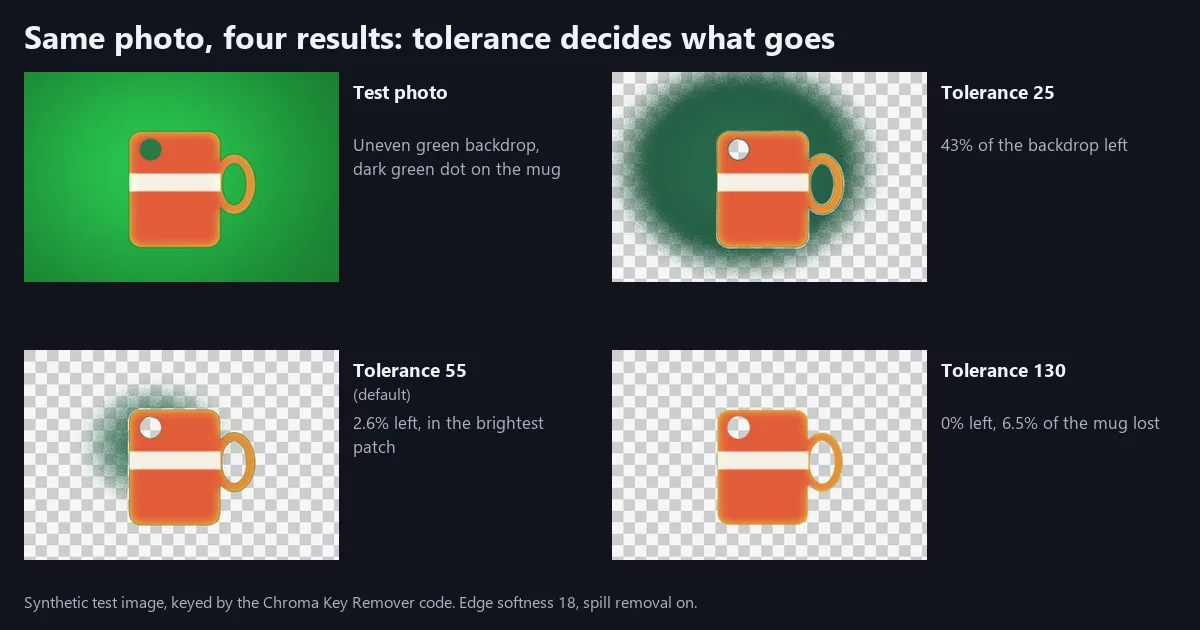
We ran the tool's own keying code on a test image: an orange mug on a green backdrop that is brighter in the middle and darker at the corners, with Edge softness 18 and spill removal on.
| Tolerance | Backdrop left behind | Subject lost |
|---|---|---|
| 25 | 43.3% | 2.9% |
| 55 (default) | 2.6% | 3.1% |
| 90 | 0% | 4.8% |
| 130 | 0% | 6.5% |
The first step does most of the work, and past the point where the backdrop clears, more tolerance only removes subject. These figures describe this one image, not every photo, but the shape holds: use the lowest value that clears the background.
Why patches of green stay behind
The patches in the figure sit in the brightest part of the backdrop. By default the tool averages the four corners to choose the colour, and in this image the corners are the darkest part, so it picked rgb(27, 130, 52), and the bright centre was the furthest away from it.
You have two fixes. Raise Tolerance, or untick Pick the colour from the corners and choose a mid-tone green from the backdrop yourself, which sits closer to both the bright and the dark areas. Picking by hand is also the answer when the subject reaches a corner, because a corner full of subject throws the average off.
The better fix happens before the photo is taken. Light the backdrop evenly, smooth out wrinkles, and keep the subject away from it, so shadows do not fall on the screen.
How to remove green spill
Spill is green light bouncing off the screen onto the subject, and it shows as a tint on hair, skin and shiny edges. It is not background, so tolerance is the wrong control. With Remove colour spill ticked, the tool finds kept pixels where green is the strongest channel and pulls that excess green most of the way back towards the average of red and blue.
Two things to know about it:
- It works on green keys only. If you remove a blue screen, the blue fringe stays.
- It affects anything green in the subject. A green leaf or shirt that survives the key will also lose some colour. If that matters, untick it and accept a slight fringe.
To see what you have missed, tick Put a colour behind it and choose magenta. It is the opposite of green, so leftover fringes stand out at once. Then untick it and download the clean version.
Chroma key or an AI background remover?
The two work in different ways, and many "green screen removers" in search results are AI tools. A chroma key compares colours. An AI remover looks for the subject, so it does not care what colour the backdrop is.
| Your photo | Use | Why |
|---|---|---|
| Even green or blue backdrop | Chroma Key Remover | Instant, and you control exactly what goes |
| Logo or graphic on one flat colour | Chroma Key Remover | Clean, predictable edges with no model |
| Green shirt or green prop on a green screen | Background Remover | It finds the subject, so matching colours survive |
| Patchy, shadowed or wrinkled backdrop | Background Remover | No single colour covers the whole backdrop |
| An ordinary photo with no green screen | Background Remover | Chroma key needs one flat colour |
For hair against a good green screen, try the key first, since it keeps fine strands by colour rather than by a predicted outline. If that fails, see how to get clean edges on a harder cutout.
Put the cutout on a new background
A transparent PNG is ready to place in slides, a design tool or a video editor. For a plain colour, tick Put a colour behind it in the same tool. For a new photo, gradient or blur, use the Background Replacer, and add depth with a drop shadow so the subject does not look pasted on. Our guide to making a background transparent covers the other routes.
Why green, and when to use blue
Green is common because it is far from human skin tones, and because most camera sensors use a Bayer filter with twice as many green photosites as red or blue, so green is recorded with the most detail. Blue is the usual choice when the subject wears or holds something green. Neither colour is special to the maths; any flat colour your subject does not contain will key.
Frequently asked questions
How do I remove a green screen from a photo for free?
Open the Chroma Key Remover, drop in the photo and raise Tolerance until the green is gone. Keep Remove colour spill ticked, then download the PNG. It is free, needs no sign-up, and the photo stays on your device.
What tolerance should I use for chroma key?
Start at the default of 55 and change it in small steps. In our test 55 left 2.6% of an unevenly lit backdrop, and 90 cleared it but cost more of the subject than 55 did. Use the lowest value that clears the background.
Why is there still green around my subject?
Two different problems look alike. A fringe at the edge is usually spill or a soft edge, so keep Remove colour spill ticked and raise Tolerance slightly. Green patches further out mean the backdrop is unevenly lit, so raise Tolerance or pick the colour by hand. More help: ImgVX AI help docs.
Can I remove a blue screen the same way?
Yes, the corner pick and Tolerance work on any flat colour. Remove colour spill does not apply, though: in this tool it only acts when green is the strongest channel of the colour you are removing, so a blue fringe stays. Browse: all free image tools.
Why did part of my subject turn transparent?
That part is close to the backdrop colour, such as a green shirt or a green logo. Chroma key only compares colours, so it cannot tell them apart. Lower Tolerance, or use the AI Background Remover, which looks for the subject instead.
How do I put a new background behind the photo?
For a plain colour, tick Put a colour behind it. For a new photo, gradient or blur, use the Background Replacer, which finds the subject with a model and does not need a green screen at all.
Sources: settings and behaviour checked against the Chroma Key Remover's code on 31 October 2026. The results table comes from that code run on one synthetic test image, so your numbers will differ. Sensor layout: B. E. Bayer, US Patent 3,971,065 (1976).
Remove your green screen now
Free, in your browser, with no sign-up and no watermark.