ImgVX AI: The Free Online Photo Editor With 89 Tools and an AI Studio (2026 Guide)
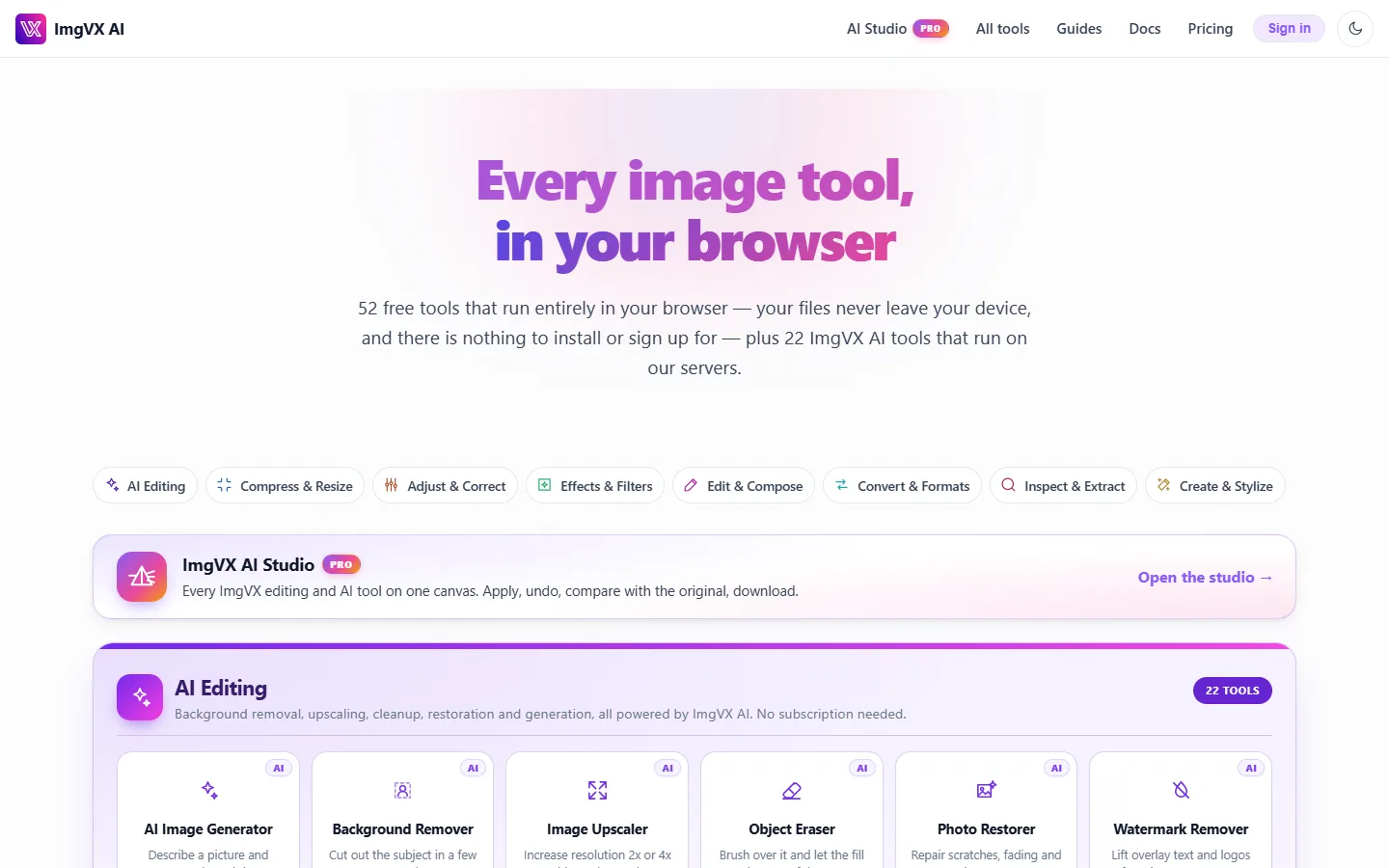
ImgVX AI is a free online photo editor that works in any browser. It has 61 tools that edit images on your own device, with no sign-up and no watermark, plus 28 AI tools for background removal, upscaling, restoring old photos and other jobs a browser can't do alone. This guide covers all of it, with screenshots from the live site.
ImgVX AI at a glance
- 89 tools: 61 free editing tools and 28 AI tools. See all of them.
- Free tools run in your browser. Your photo is never uploaded, and the tools keep working if your connection drops.
- No account needed to compress, resize, crop, convert or edit.
- AI tools use credits, from 15 to 85 per run. Packs start at $5 for 500 and never expire (pricing).
- ImgVX AI Studio puts every tool on one canvas, on desktop and as a full-screen editor on phones.
What ImgVX AI is (and the two kinds of tools)
Most online image editors work the same way. You upload a photo to someone's server, wait, and download a copy. Often it comes back with a watermark or a "create an account to download" wall. ImgVX works differently, and it helps to know how before you start.
The free tools run on your device. The code that compresses, resizes, crops, converts or filters your image is sent to your browser, and your own processor does the work. The file never crosses the network. That is why these tools are free: they cost us almost nothing to run. It also means there is no file-size queue, no upload wait on slow mobile data, and no copy of your photo sitting on a stranger's disk.
The AI tools run on ImgVX AI servers. Some jobs need models far larger than a browser can hold. Examples are cutting a person out of a busy background, filling in a removed object, enlarging an image to four times its size with new detail, or turning a faded print into a clean colour photo. For those, your image goes to ImgVX AI over an encrypted connection, the result comes straight back, and nothing is kept. Each AI run costs credits, because each run costs us real money on the GPU.
Every tool carries a badge, so you always know which kind you're using: Free means it runs on your device, and AI · N credits means it runs on ImgVX AI.
The 61 free tools, by job
Nobody needs 61 tools at once. You need the one for the job in front of you. Here they are grouped the way people actually search for them.
Make an image smaller: compress and resize
The most common image problem is a file that's too big for an upload form, an email or a web page. The image compressor shrinks JPG, PNG, WebP and AVIF files and shows you the before and after size as you move the quality slider. If a form asks for a hard limit, use a target preset. The compressor then finds the highest quality that fits: compress to 100 KB, to 50 KB, to 20 KB for strict government portals, or to 1 MB.
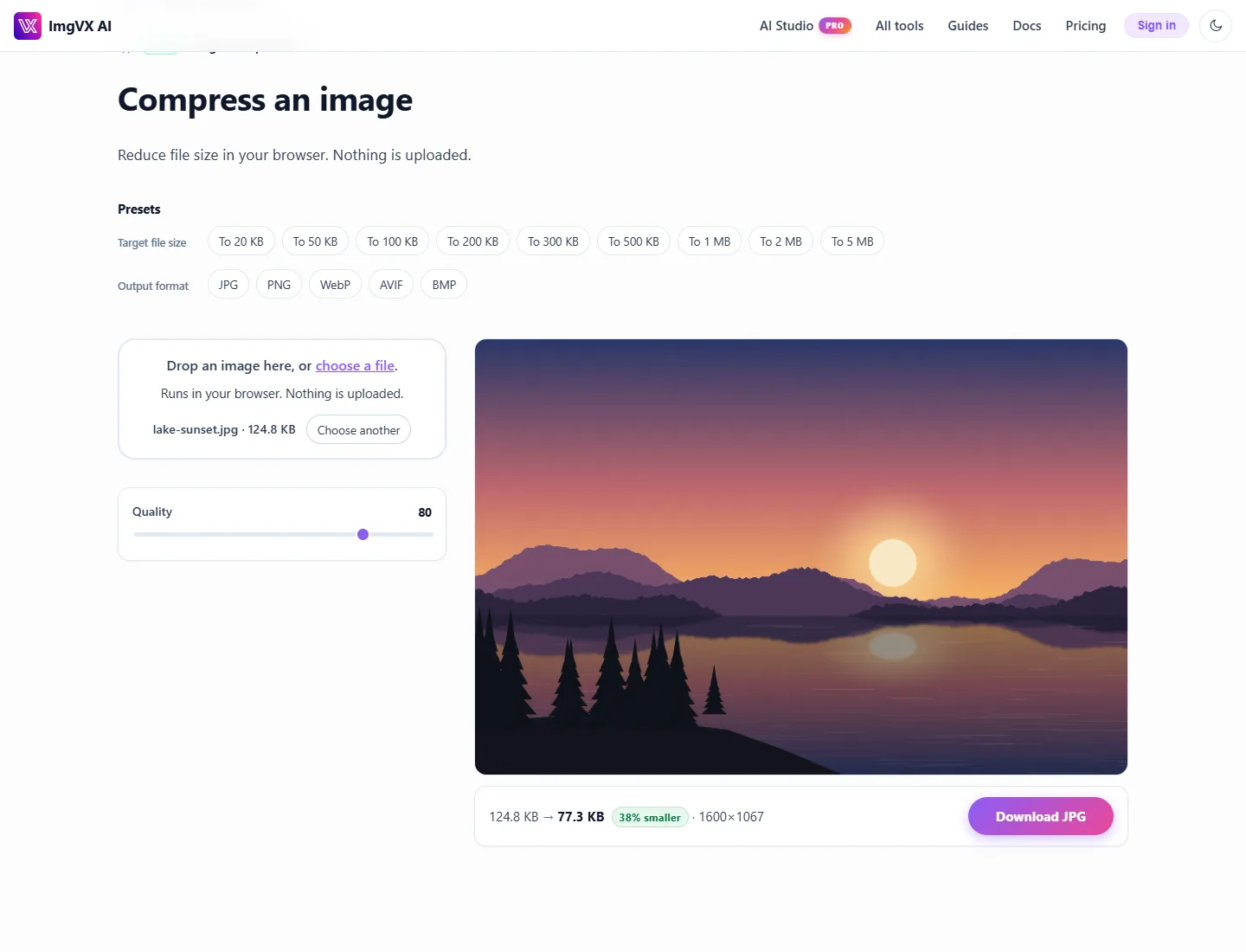
Dimensions are a separate problem from file size. The image resizer changes the pixel size, with presets for the sizes people ask for most: 1080×1080 for a square Instagram post, 1080×1350 for a portrait post, 1280×720 for a YouTube thumbnail and 1200×630 for a link preview. For a whole folder of product photos, the bulk image resizer does them all in one go and hands you a ZIP. For print, the DPI converter sets 300 DPI without touching a single pixel (why that works).
Change the shape: crop, rotate, straighten
The image cropper has free-form cropping and fixed ratios: 1:1, 4:3, 16:9 and 9:16 for stories. It also has platform presets such as Instagram post, LinkedIn banner and Etsy listing. The rotator flips and turns photos that came off the phone sideways. The perspective corrector squares up a document or whiteboard shot at an angle. The canvas resizer adds a border or pads a photo to a square without cropping any of it.
Fix light and colour
For a photo that's too dark, too flat or too blue, Image Adjustments gives you the sliders you'd expect from a phone editor: exposure, brightness, contrast, highlights, shadows, saturation, vibrance, temperature and tint. There's a live preview as you drag. If you know your way around a histogram, Levels & Curves gives you precise control, and the histogram viewer shows whether you're clipping the highlights.
Filters and effects
Image Filters covers the one-tap looks: black and white, sepia, vintage, warm and cool. Beyond that there's blur (including background blur), a sharpener, a noise reducer for grainy night shots, film grain and vignette, pixelate and censor for hiding faces or number plates, and a glitch effect.
For the looks people copy from phone apps, Aesthetic Filters has 21 finished looks such as Vaporwave, Sun Faded, Jade Static, 90s Film and Teal & Orange, each with a strength slider. Light Leak & Overlays adds light leaks, a sun flare, light rays, bokeh, dust and faded film. The colour splash effect keeps one colour and turns the rest black and white, and Mirror & Kaleidoscope makes symmetrical and kaleidoscope pictures.
Edit and compose
This is the biggest group, with 17 tools. You can add text to an image, protect your work with the watermark tool, and add a drop shadow to a cut-out product. There are selection tools, a brush, eraser and fill, retouch tools for spots and blemishes, dodge, burn and sponge, a red-eye remover and a shape drawer. The chroma key remover clears a green-screen or solid-colour background for free. The colour replacer swaps one colour for another, the transparency tool fades an image, and the image splitter cuts a picture into a grid of tiles, for example for an Instagram carousel.
Three of them are for social posts. Photo Stickers puts hearts, stars, sparkles and emoji on a picture, one exactly where you want it or a scatter of up to 30. Photo Frames adds a Polaroid border with a handwritten caption, a film strip, a gallery mat or a wood frame. No Crop fits the whole photo into a 1:1, 4:5 or 9:16 frame on a blurred background, which is how you post a full photo on Instagram without cropping.
Convert between formats
The image converter handles every common pair, for example PNG to JPG, JPG to PNG, JPG to WebP and PNG to WebP. iPhone photos have their own tool, HEIC to JPG, which converts in the browser, so it works on Windows and Android with no extra codecs. There's also PDF to image, image to PDF, an SVG vectorizer that traces a logo into a scalable vector, an SVG optimizer, and Base64 converters both ways. Not sure which format to pick? Read JPG vs PNG vs WebP vs AVIF.
Inspect, extract and clean
The EXIF viewer shows everything a camera or phone saved inside the file: camera model, lens, settings and often the exact GPS location. The metadata remover strips all of it before you post a photo publicly, and the metadata editor lets you change it instead. Image to text (OCR) pulls the words out of a screenshot or scanned page. The colour picker and palette extractor give you exact HEX codes from any image.
Create
Finally, the fun ones: a photo collage maker for 2 to 9 photos in one grid, photo to sketch for pencil, charcoal and ink drawings, a meme generator, an avatar maker for round profile pictures, a GIF maker and GIF frame extractor, a panorama stitcher, and a favicon generator that turns a logo into every icon size a website needs.
The 28 AI tools and what each costs
These are the jobs that need a large model. Each shows its price on the button before you run it, so nothing is charged by surprise. If a run fails, you aren't charged.
| AI tool | What it does | Credits |
|---|---|---|
| Background Remover | Cuts out people, products and pets, including hair, to a transparent PNG | 40 |
| Image Upscaler | Enlarges 2× or 4× and adds real detail, not just blur | 85 |
| Object Eraser | Brush over a person, sign or bin and the scene is filled in behind it | 40 |
| Photo Restorer | Repairs scratches, tears and fading on old scanned prints | 40 |
| Photo Colorizer | Turns black-and-white photos into natural colour | 40 |
| AI Photo Editor | Describe the change in plain words ("make it golden hour") | 40 |
| Background Replacer | Puts the subject in a new scene you describe | 40 |
| Sky Replacer | Swaps a grey sky for a blue sky, sunset or storm | 40 |
| Photo Relighter | Changes the lighting after the photo was taken | 40 |
| Face Retouch | Natural skin smoothing and blemish removal | 40 |
| Watermark Remover | Removes overlay text and logos from your own images | 40 |
| Text Remover | Clears captions and text from a picture | 40 |
| Uncrop / Expand | Extends a photo past its edges | 40 |
| Banner Extender | Widens an image to banner and cover sizes | 40 |
| Object Insert | Adds a described object into the scene | 40 |
| Passport Photo Maker | Plain background, correct crop and size | 40 |
| AI Headshot Generator | Professional headshot from a casual selfie | 40 |
| Photo to Cartoon | Cartoon, anime and illustrated styles | 40 |
| Virtual Try-On | Shows a garment on a person photo | 45 |
| Product Photo Studio | Studio-style product shots for shops and listings | 65 |
| AI Image Generator | Creates an image from a text description | 85 |
| AI Alt Text Generator | Writes accessible alt text and captions for an image | 15 |
| AI Photo Enhancer | Fixes blur, noise and dull colour in one pass, same picture | 40 |
| Portrait Blur | Portrait-mode background blur for any photo | 40 |
| AI Hairstyle Changer | Try a new cut or hair colour on your own photo | 40 |
| AI Makeup | Natural, soft glam, bold lip or smoky eye on the same face | 40 |
| AI Outfit Changer | Swaps the clothes for a suit, streetwear or anything you describe | 40 |
| AI Photo Effects | Turns a photo into a plushie, 3D figurine, clay or video game character | 40 |
ImgVX AI Studio: every tool on one canvas
Separate tool pages are perfect for one job. Real edits are usually several jobs in a row, though: crop, brighten, remove the background, add a shadow, compress for the web. On separate pages that means downloading and re-uploading between every step. ImgVX AI Studio removes that. It's one editor with all 89 tools arranged around a single working image.
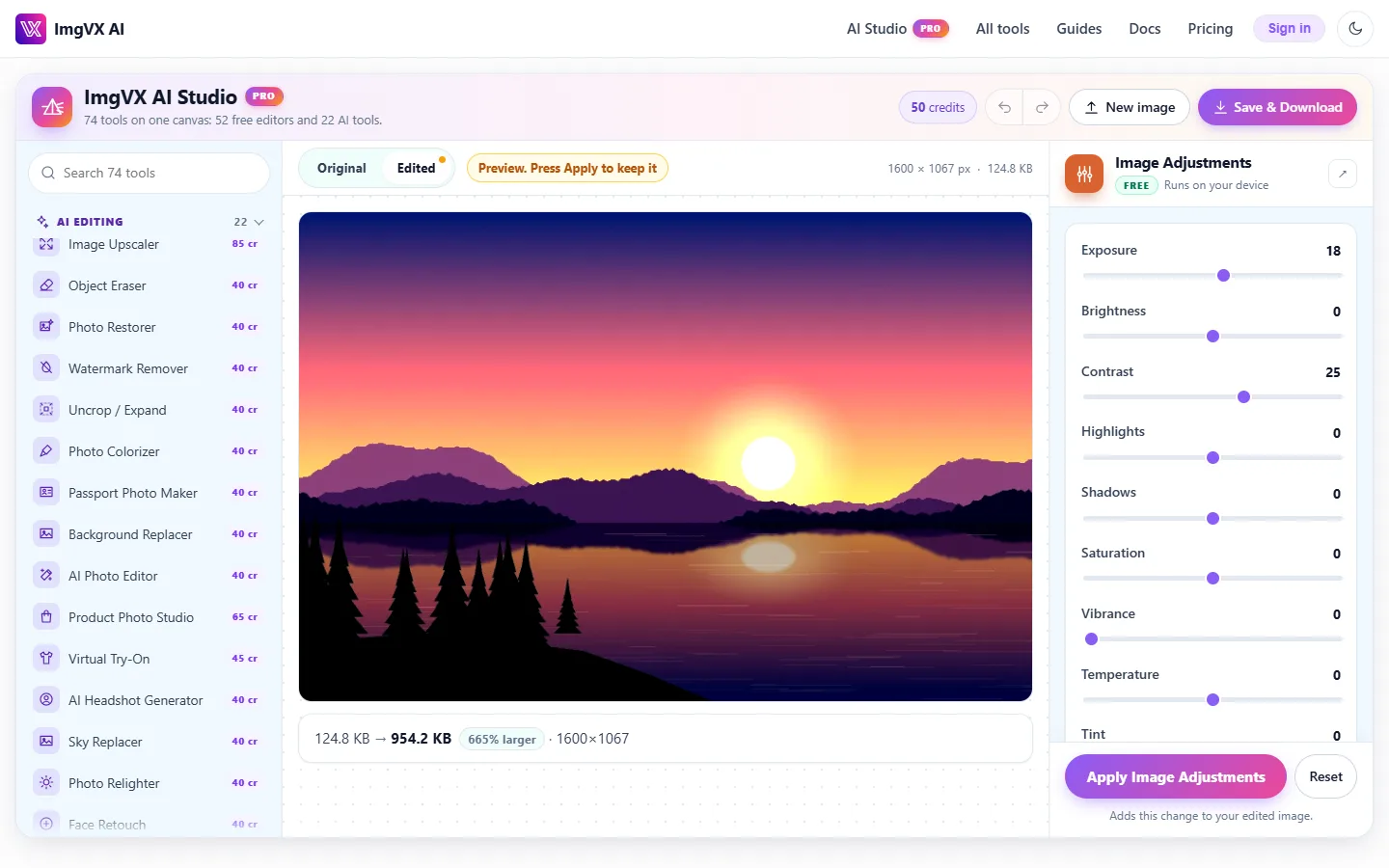
A typical edit in the Studio goes like this:
- Open an image: drag it in, press New image, or paste a screenshot with Ctrl+V.
- Pick a tool from the list on the left. Search finds any tool by name, so type "blur" or "HEIC" and you're there.
- Adjust the settings. The picture previews every change live.
- Apply to keep it. Each Apply becomes one step in the history.
- Undo, redo or compare. Switch between Original and Edited at any point to see how far you've come.
- Save & Download once at the end, as PNG, JPG or WebP.
AI tools work the same way, and you always see the price before you run one. The run button reads "Remove background · 40 credits", and the result waits for you to review it before it's applied to your image.
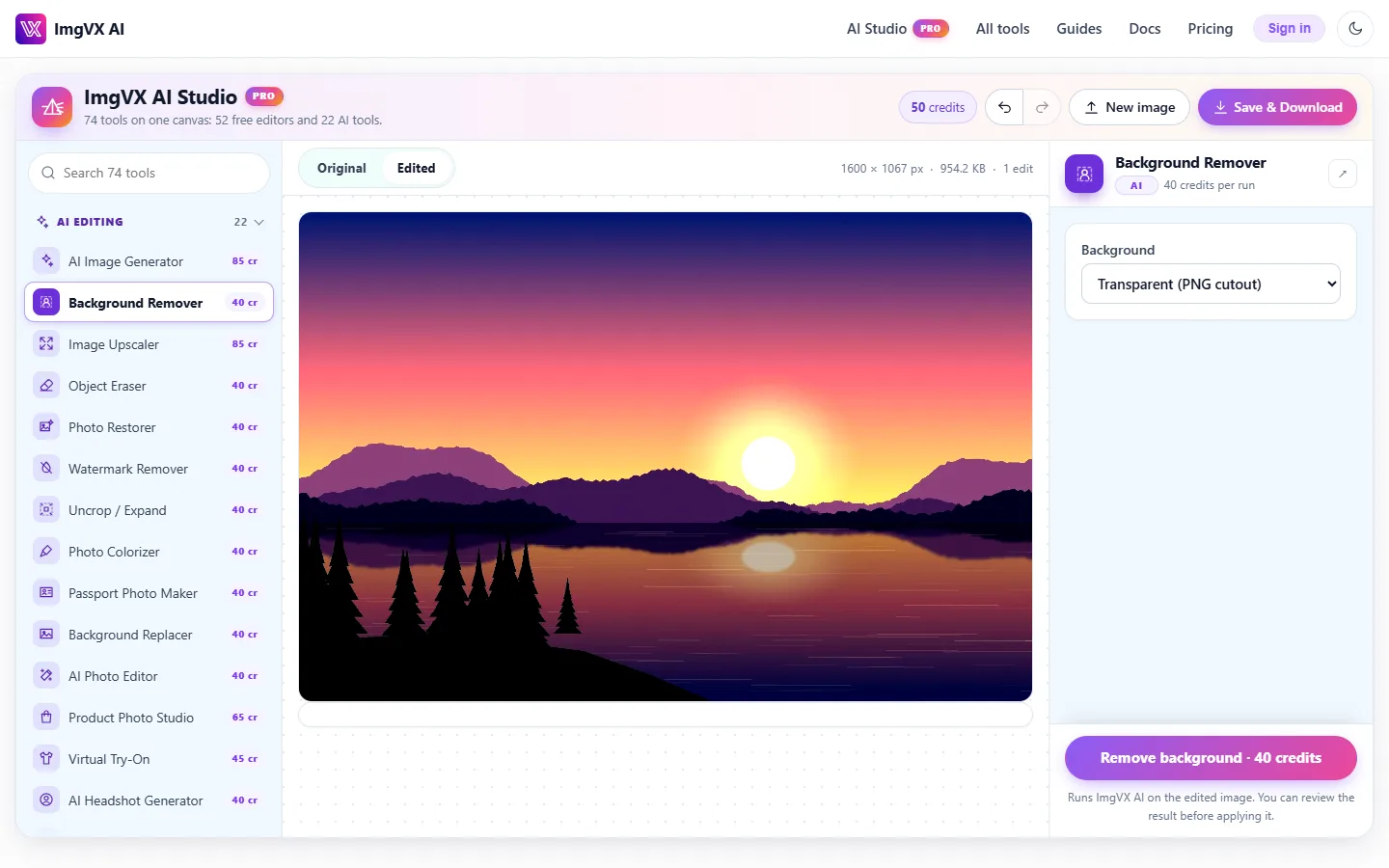
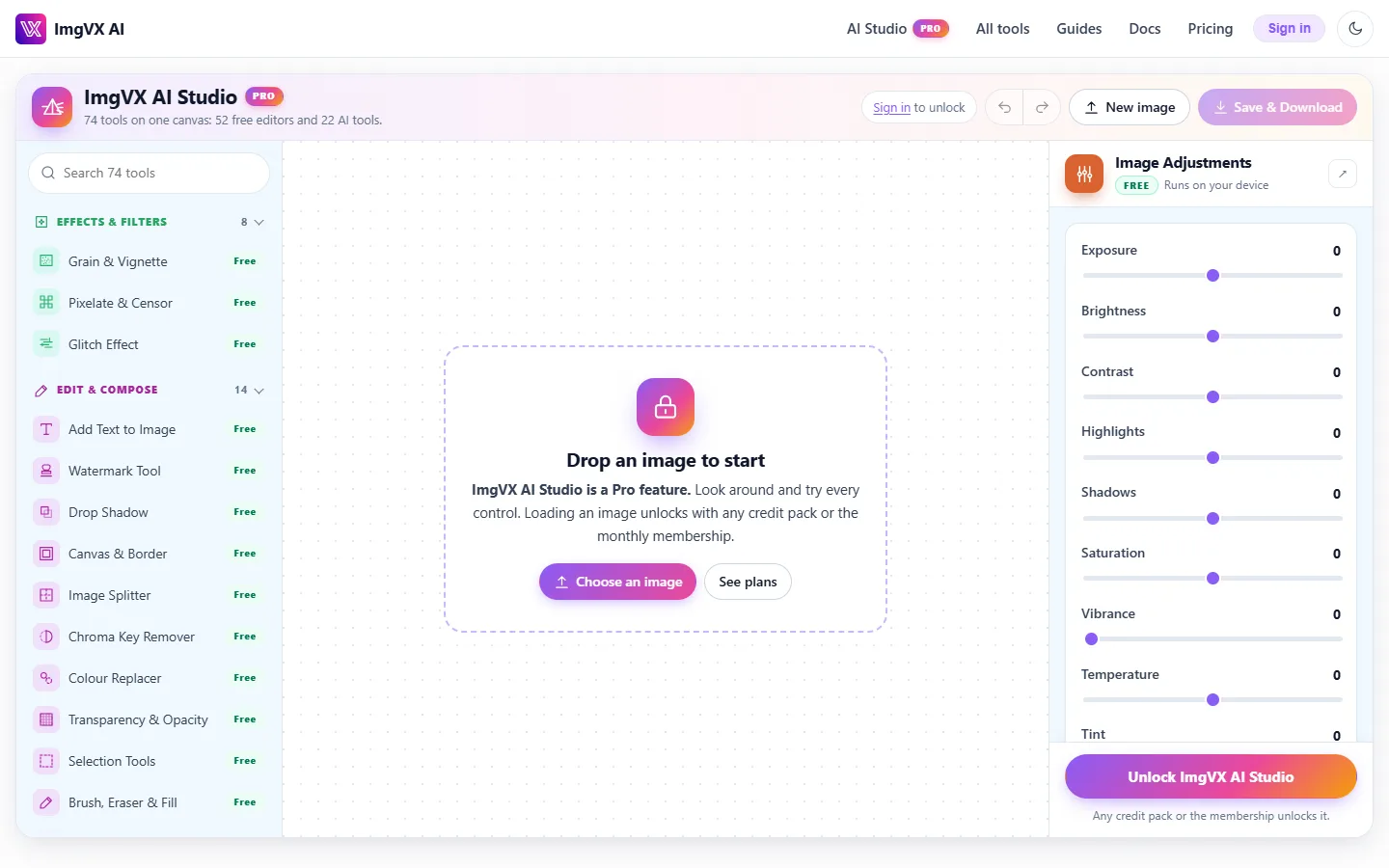
The Studio is part of any paid account. Anyone can open it and try every control. Loading your own image unlocks with any credit pack or the membership. Inside the Studio, the free tools stay free, and AI tools charge their usual credits.
Editing photos on your phone
Most people edit photos on their phones now, and a desktop layout squeezed onto a small screen is miserable to use. So on phones, ImgVX AI Studio becomes a full-screen editor that works like the photo apps you already know:
- The photo fills the screen.
- A category bar sits at the bottom, under your thumb: AI Editor, Beauty, Fun, Adjust, Filters, Edit, Resize, Create, Convert and Inspect. Beauty gathers the face, makeup, hair and outfit tools; Fun has stickers, collages, frames, overlays and aesthetic filters.
- Tap a category and its tools appear in a row just above the bar. Swipe the row sideways for more.
- Tap a tool and its settings slide up from the bottom. ✓ applies the change. ✕, in the corner of the panel or in the bottom bar, closes it without changes. Your phone's back button or gesture closes the tool too.
- Hold the compare button on the photo to peek at the original, and let go to return.
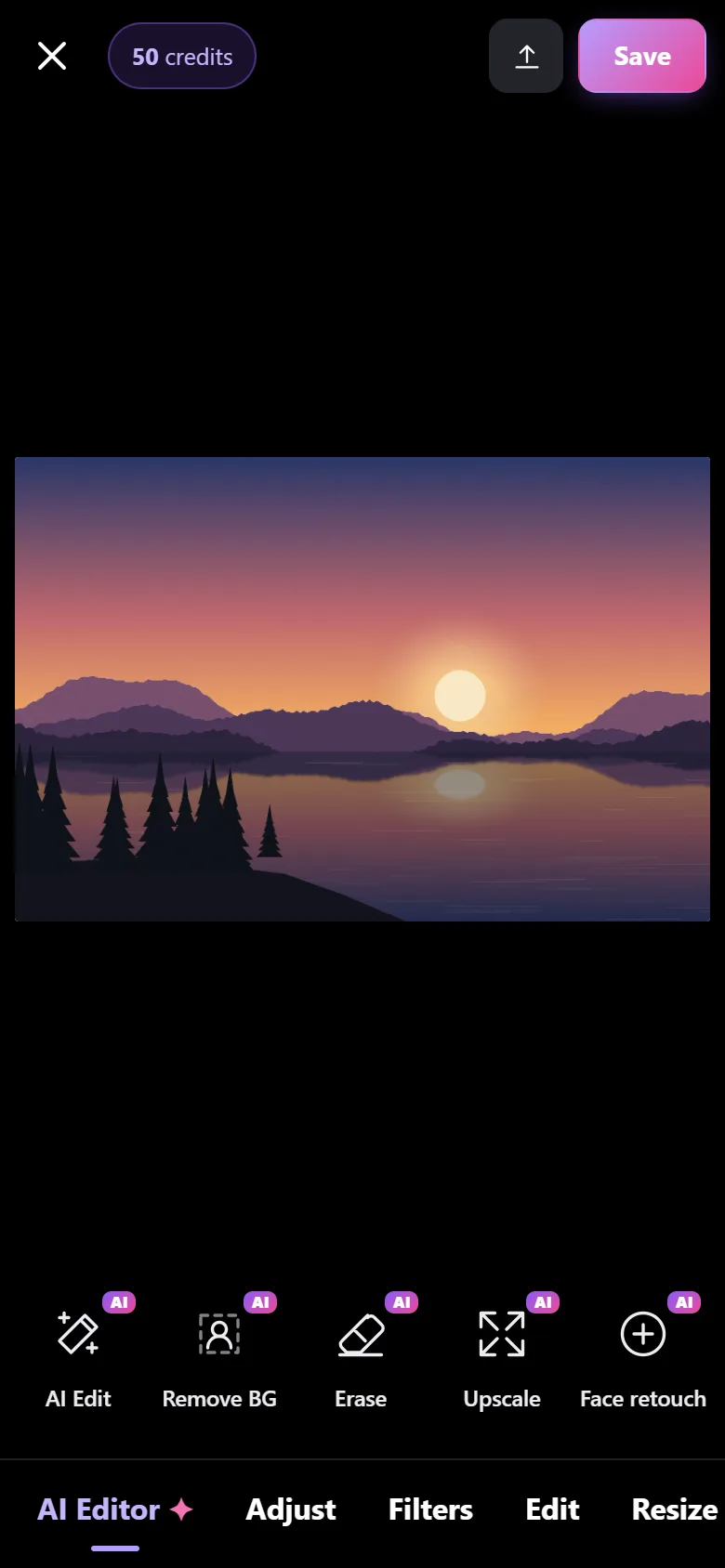
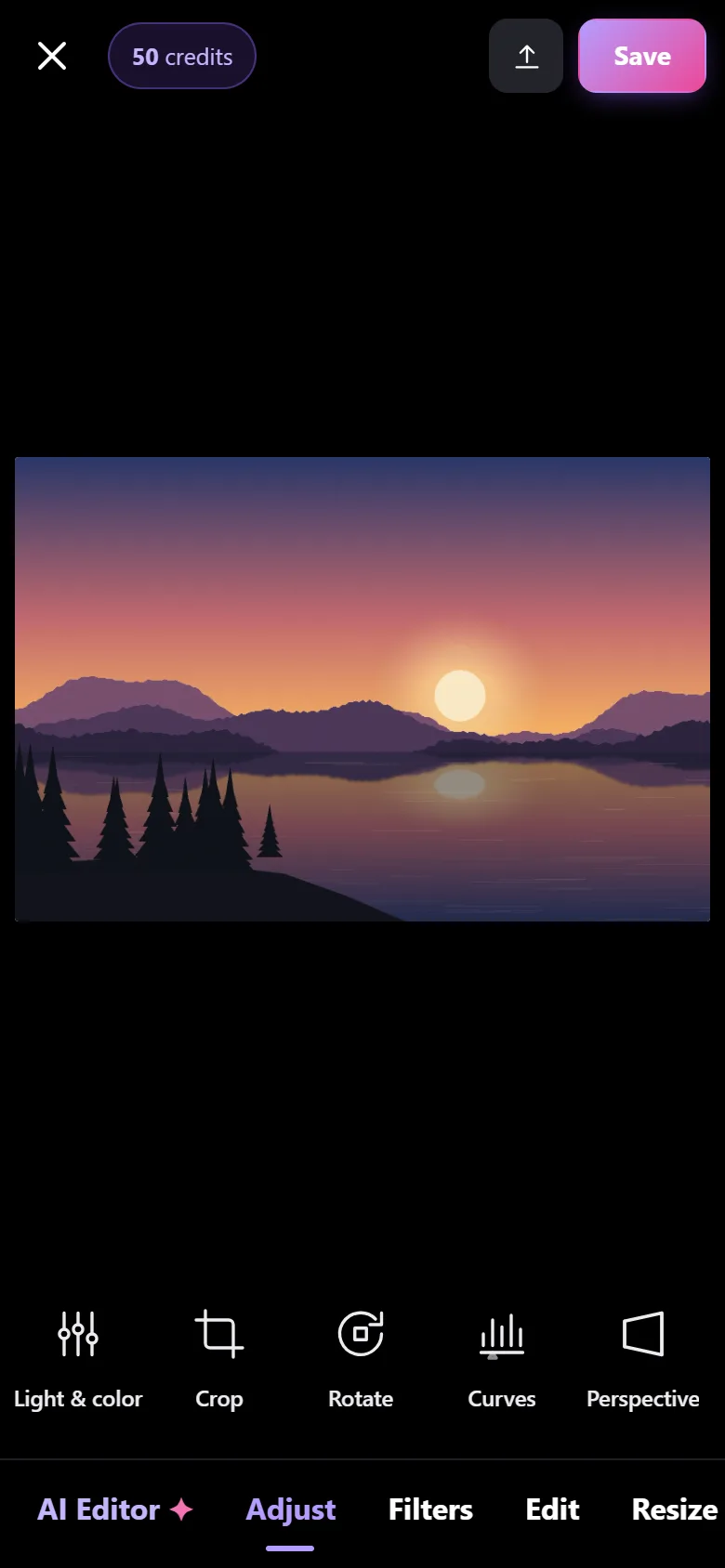
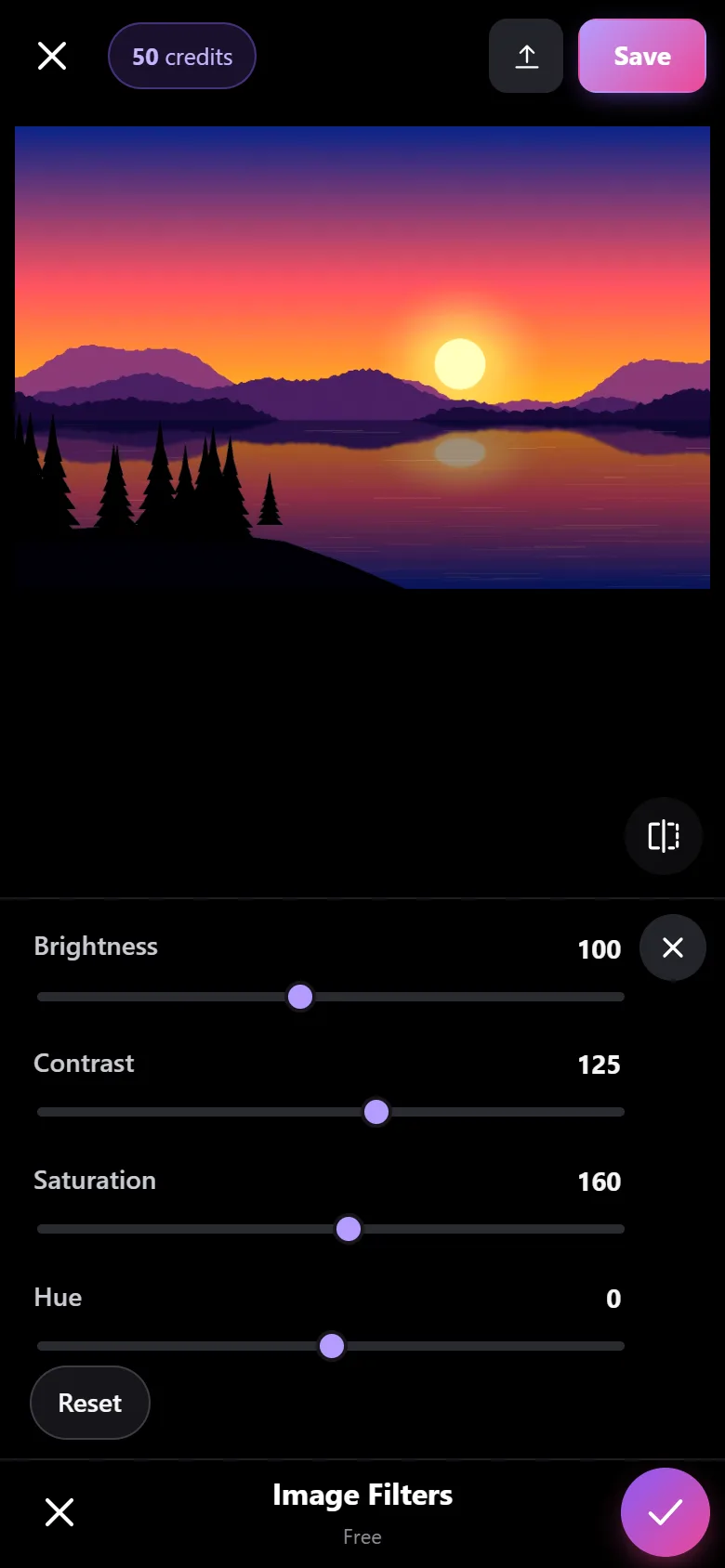
The individual tool pages work on phones too, in any browser, with nothing to install. Open HEIC to JPG on an Android phone, pick a photo from your gallery, and you have a JPG seconds later.
How-to recipes for the most common jobs
These are the questions people search for most, each answered with the fastest route through ImgVX.
How to compress an image to 100 KB (or any exact size)
- Open Compress to 100 KB.
- Drop in your photo. The tool finds the highest quality that fits under 100 KB.
- If it still can't fit, the photo has too many pixels for that limit. Run it through the resizer first; 1600 pixels on the long edge is plenty for most forms.
This works on your device and is free. For the background, read how to reduce image file size.
How to remove a background from a photo
For a person, pet or product against a real-world background, use the AI Background Remover (40 credits). It handles hair and soft edges and gives you a transparent PNG. If the background is a single flat colour, like a green screen or white paper, the free chroma key remover often does the job at no cost. After that, the free drop shadow tool makes a cut-out look placed rather than pasted.
How to convert HEIC to JPG on Windows or Android
iPhones save photos as HEIC, and many Windows PCs, Android phones and upload forms won't open them. Open HEIC to JPG, drop in one photo or a whole batch, and download the JPGs. The conversion happens in your browser, so there's no codec to buy or app to install, and nothing is uploaded. Need PNG or WebP instead? Use HEIC to PNG or HEIC to WebP. More on HEIC.
How to resize a photo for Instagram without cropping heads off
Use the Instagram post crop to choose exactly what stays in the frame, then the 1080×1350 resize for a portrait post. For a photo you don't want to crop at all, the make-square canvas adds padding instead. Every platform's current size is listed in our social media image sizes guide.
How to upscale a low-resolution image
A normal resize only stretches pixels, so a small image just gets bigger and blurrier. The AI Image Upscaler (85 credits) enlarges 2× or 4× and generates plausible fine detail, which suits old digital photos, small product images and screenshots. Afterwards, the free sharpener can add a touch of crispness.
How to restore and colorize an old family photo
Scan or photograph the print flat, in even light. Run Photo Restorer to repair scratches and fading, then Photo Colorizer if it was black and white, for 80 credits in total. In the Studio, you can do both in sequence and compare the result against the original scan.
How to make a passport or ID photo at home
Take the photo against a plain wall in daylight, facing the camera. The AI Passport Photo Maker cleans the background and crops to the required size. Always check your own country's rules before printing, because sizes and background colours differ.
How to remove GPS location from a photo before posting
Photos from phones usually carry the exact location they were taken. Check with the EXIF viewer, then strip everything with the metadata remover. It rewrites the file's metadata without re-compressing the image, so quality doesn't drop. Why this matters.
How to copy text out of an image
Drop a screenshot, photo of a document or scanned page into Image to Text, and copy the recognised words. It runs on your device, so it's safe for private documents.
Pricing and how far credits go
The 61 free tools are free, with no trial period, no daily limit and no watermark. The AI tools use credits:
| Plan | Price | Credits | Background removals it covers |
|---|---|---|---|
| Starter pack | $5 one-time | 500, never expire | 12 |
| Growth pack | $12 one-time | 1,500, never expire | 37 |
| Pro pack | $29 one-time | 4,000, never expire | 100 |
| Membership | $12.99 per month | 4,000 every month, and no ads | 100 a month |
Any of these also unlocks ImgVX AI Studio. If you edit now and then, a one-time pack is the better deal because the credits don't expire. If you edit a lot every month, the membership gives you the same 4,000 credits as the Pro pack for less than half the price. Full details are on the pricing page.
Privacy: what stays on your device
The two kinds of tools behave differently, so here's exactly what happens with each.
- Free tools: your image is opened, processed and saved inside your browser tab. It isn't uploaded anywhere. You can check this yourself: open your browser's network panel while you edit, and you'll see no upload.
- AI tools: the image is sent over an encrypted connection to ImgVX AI, processed in memory, and returned. We don't store the image or the result, and your images are never used to train AI models. Your account keeps only your credit balance and a log of which tools you used, never the images. The full detail is in the privacy policy.
This matters most for the photos people are nervous about uploading: ID documents, medical letters, screenshots of bank apps, and children. For those, the free tools are the safest online option there is, because the file never leaves the device.
How it compares, and when to use something else
| ImgVX AI | Typical upload-based sites | Desktop editors | Phone editing apps | |
|---|---|---|---|---|
| Install needed | No | No | Yes | Yes |
| Account for basic edits | No | Often | Usually | Often |
| Watermark on free output | Never | Sometimes | No | Sometimes |
| Photo uploaded for basic edits | No | Yes | No | Varies |
| AI background removal, upscaling | Yes, pay per use | Varies | Yes, often subscription | Yes, often subscription |
| Works on any phone or computer | Yes | Yes | No | One platform |
When ImgVX isn't the right tool. If you edit RAW camera files professionally, build multi-layer composites, or prepare CMYK files for commercial print, a dedicated desktop editor is still the better choice. ImgVX works on one flattened image at a time, and it saves in web and screen formats. It also doesn't edit video. For the everyday list, though, it's quicker than opening a heavy program. That list covers smaller, resized, cropped, converted, brighter, cut-out, cleaned-up and posted.
Frequently asked questions
Is ImgVX AI free?
Yes, 61 of the 89 tools are free with no account and no watermark: compressing, resizing, cropping, converting (including HEIC to JPG), filters, text, watermarks, EXIF removal, OCR and more. The 28 AI tools, such as background removal, upscaling and photo restoration, use credits. Credits start at $5 for 500 and never expire.
Do I need to sign up to use ImgVX?
Not for the free tools. Open a tool page, drop in an image and download the result. You only need an account to buy credits for the AI tools or to use ImgVX AI Studio.
Are my photos uploaded to a server?
Not with the free tools. They run entirely in your browser, and the image never leaves your device. The AI tools do send the image to ImgVX AI servers, over an encrypted connection, because the models are too large to run in a browser. The image is not stored after the result comes back and is never used to train models.
How many credits does removing a background cost?
Background Remover costs 40 credits per image. The 500-credit starter pack ($5) covers 12 removals. The monthly membership (4,000 credits for $12.99) covers 100.
Can I use ImgVX on my phone?
Yes. Every tool works in a phone browser, on Android and iPhone, with nothing to install. ImgVX AI Studio opens as a full-screen editor on phones, with a category bar at the bottom and each category's tools in a row above it.
What is ImgVX AI Studio?
It is one editor with all 89 ImgVX tools around a single image. You can crop, adjust light and colour, remove the background, add text and compress, one after another. You can undo any step, hold to compare with the original, and save once at the end. It needs a paid account: any credit pack or the membership unlocks it.
Do ImgVX credits expire?
No. Credits from the one-time packs never expire. The monthly membership adds 4,000 credits each month and also removes ads across the site.
What image formats does ImgVX support?
You can open JPG, PNG, WebP, AVIF, GIF, BMP, TIFF, HEIC, SVG and PDF, and save as JPG, PNG, WebP, AVIF or BMP. Other tools also produce PDF, ICO, SVG and Base64.
Start editing
Pick the job you came for. The free tools need no account.