
How to Convert Images Free: JPG, PNG, WebP, PDF, SVG
Most image conversions are one step and free, as long as you pick the right target format. A WebP you saved from a website will not open in an old program, so you need a JPG. A form wants a PDF, a slide needs one page of a PDF as a picture, a logo has to scale as an SVG, or the words in a screenshot need to become text you can paste. This guide shows how to do each conversion for free in your browser with ImgVX AI, with real results from the tools, and explains what each conversion keeps and loses.
The short answer
- WebP, PNG, JPG, AVIF: the Image Converter. Use JPG to open anywhere, PNG for transparency and sharp graphics, and WebP for websites.
- iPhone HEIC: HEIC to JPG, which has its own decoder and works in every browser.
- Pictures to PDF and back: Image to PDF and PDF to Image.
- Logo to vector: the SVG Vectorizer. Picture to words: Image to Text (OCR).
- The rule: converting never adds quality. It can only keep what is there or lose some of it.
Which format should you convert to?
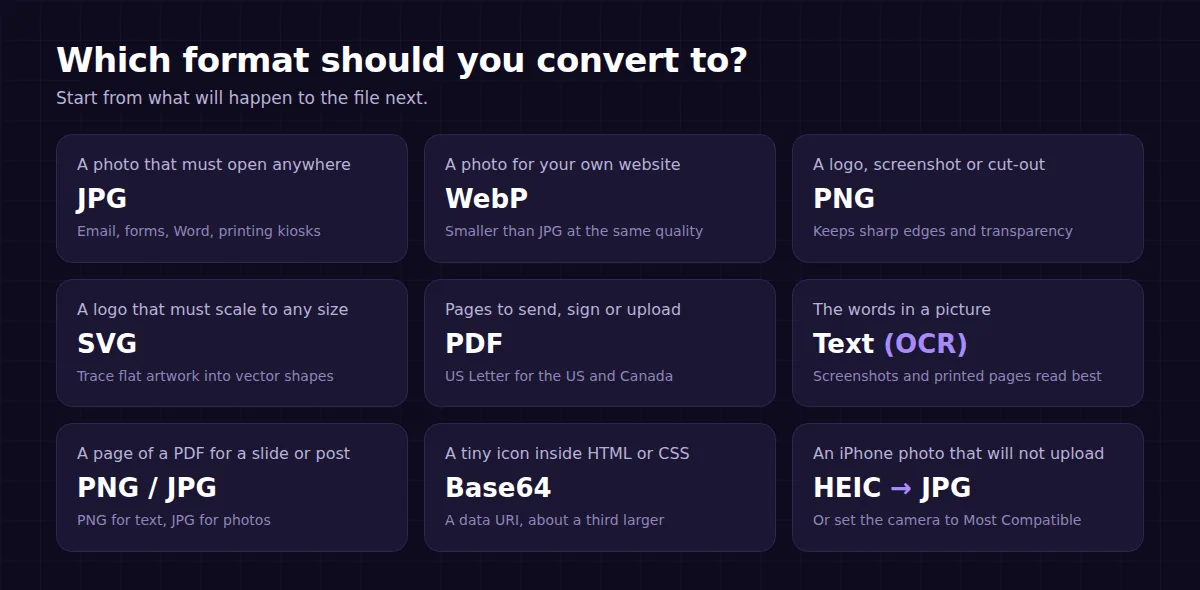
The right format depends on what happens to the file next, not on what it is now. A photo going into an email, a Word document or a job portal should be a JPG, because everything opens JPG. The same photo going onto your own website should be WebP, which is smaller. A logo, a screenshot with text, or a cut-out with a transparent background should be PNG. A document someone has to print or sign should be a PDF.
Two things never change, whatever you convert. First, converting cannot add detail: a blurry JPG becomes a blurry PNG. To make a small photo genuinely sharper you need the Image Upscaler or the AI Photo Enhancer, not a format change. Second, every conversion to a lossy format (JPG, WebP, AVIF) throws a little detail away, so convert from the best original you have and do it once, not back and forth.
What each conversion keeps and loses
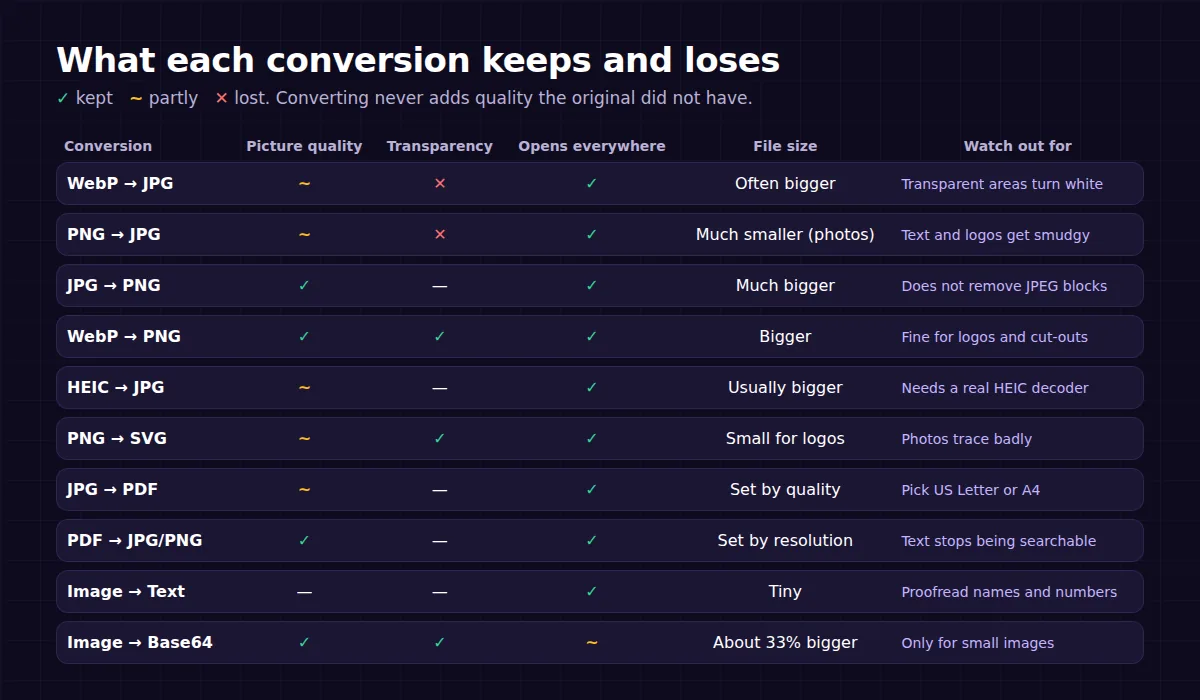
This table answers the questions people ask after converting: why the file got bigger, where the transparency went, and why the text is no longer searchable.
WebP to JPG, and "save as JPG instead of WebP"
This is one of the most common image questions in the US, and the cause is simple. Most large websites now send pictures as WebP because the files are smaller and pages load faster. When you right-click and save, your browser saves exactly what it received, so you get a .webp file. Current browsers, phones and recent versions of Windows and macOS open WebP, but plenty of older programs, print kiosks, some email clients and many upload forms still reject it.
- Save the image as it is (it will be a .webp file).
- Open the WebP to JPG converter and drop the file in. The preset sets JPEG for you.
- Leave Quality at 90, which keeps nearly all the detail, and download the JPG.
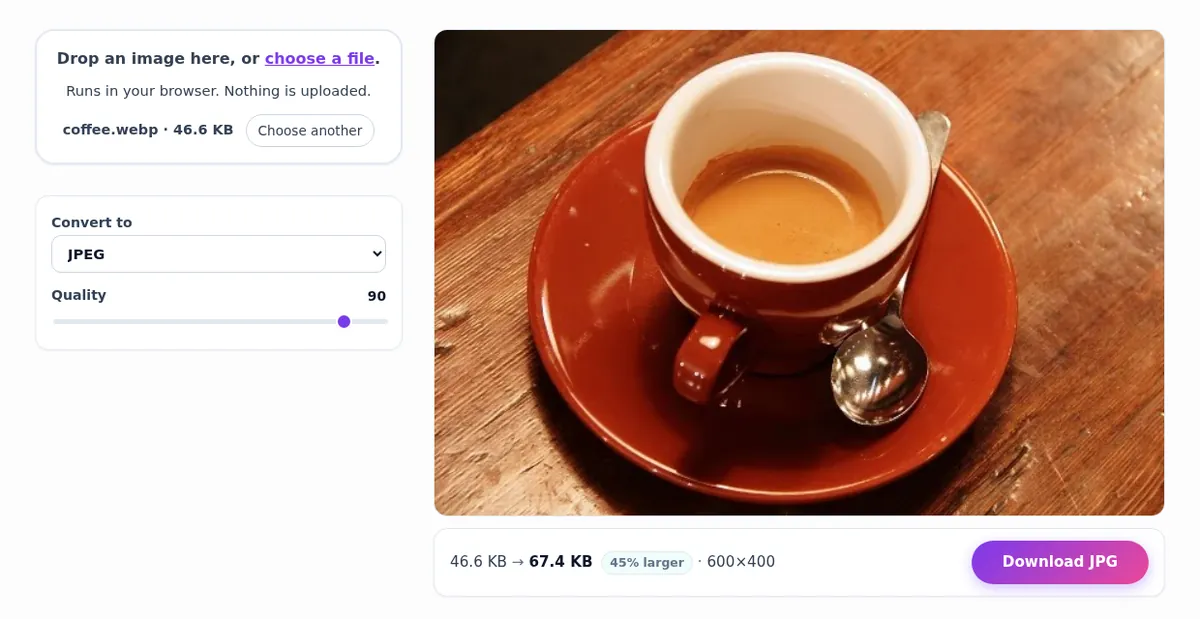
Notice the size: the JPG came out 45% bigger than the WebP it was made from. That is normal. WebP stores photos more efficiently than JPG, so the same picture needs more bytes as a JPG. If the upload box has a size limit, set a target in the Image Compressor instead, which can save as JPG and hit a size such as 200 KB in one step.
If the WebP has a transparent background (a logo or a product cut-out), convert to PNG instead: JPG has no transparency, so those areas turn white. Animated WebP files cannot become an animated JPG; to keep the frames, take them apart with the GIF Frame Extractor, which reads animated WebP in Chrome and Edge.
PNG to JPG and JPG to PNG
PNG to JPG: for photos that are too big
Phone screenshots and photos exported from some apps arrive as PNG, which is lossless and therefore huge for photographs. Converting a photo from PNG to JPG usually cuts it to a fraction of the size with no visible change. Do not do it for screenshots full of small text, logos or line art: JPG blurs sharp edges into a faint smudge, which is exactly what PNG is designed to avoid.
JPG to PNG: rarely what you want
Converting JPG to PNG keeps every pixel exactly as it is, including any JPEG compression blocks, in a file that is often several times larger. It does not make the picture clearer or add a transparent background. It is worth doing in two cases: a website or app insists on PNG, or you are about to edit the image many times and do not want each save to lose a little more. For a transparent background, remove it with the Background Remover, which saves a PNG with real transparency.
PNG to WebP for your own website
If you run a website, PNG to WebP and JPG to WebP are the conversions that make pages faster. WebP keeps transparency, so it replaces PNG for logos and cut-outs too. Our guide to reducing image file size shows how far to go.
Real file sizes: PNG vs JPG vs WebP
To put numbers on it, we saved the same 1804 x 1200 photo three ways with the Image Converter in Chrome at quality 90.
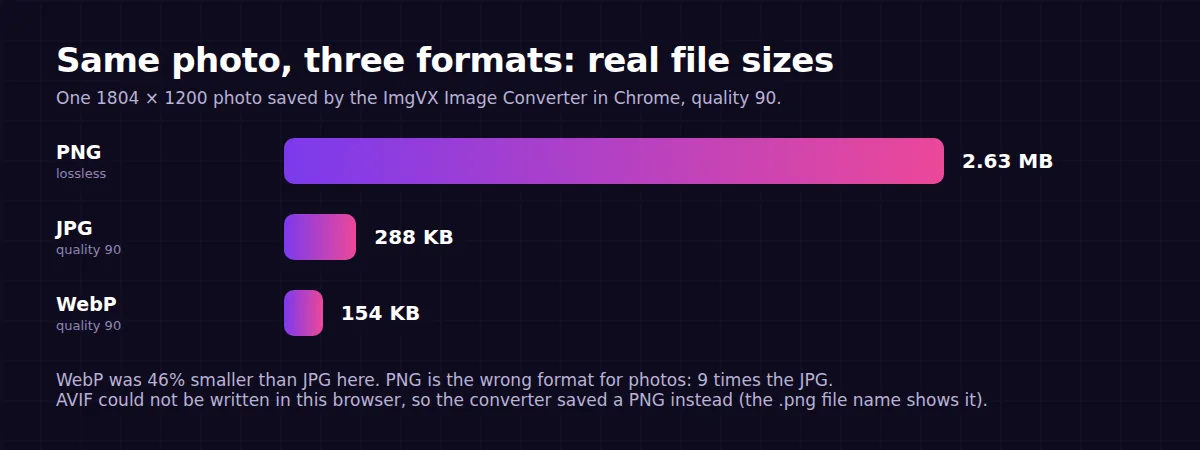
- WebP was 46% smaller than JPG at the same quality setting, which is why websites use it.
- PNG was about 9 times the JPG. Lossless is the wrong choice for photographs.
- AVIF is smaller again on paper, but Chrome could not write it in our test, so the converter saved a PNG and named the file .png. Browsers that can write AVIF get a real AVIF file. For sharing, AVIF is still less widely accepted than WebP.
HEIC, TIFF, AVIF and other formats browsers struggle with
Whether a browser-based converter can open a file depends on whether the browser itself can decode it. Every current browser decodes JPG, PNG, WebP, GIF, BMP and AVIF. Two common formats are different, so ImgVX AI brings its own decoders for them:
- HEIC (iPhone photos): only Safari decodes it natively, so HEIC to JPG loads its own decoder (about 0.8 MB, once) and works in every browser. The image converter and the other tools use the same decoder when you open a HEIC, so you can also go straight to PNG or WebP. To avoid HEIC in future, set the iPhone to Settings, Camera, Formats, Most Compatible. More in HEIC photos explained.
- TIFF (scanners, print and archive files): only Safari decodes TIFF natively, so in Chrome, Edge and Firefox the tools load a small TIFF decoder (about 60 KB) the first time you open one. It reads uncompressed, LZW, Deflate, PackBits and JPEG-compressed TIFFs, 8 or 16 bits a channel; a multi-page TIFF opens at its first page. TIFF to JPG is the usual conversion. Keep the TIFF itself as your archive master.
- RAW camera files and Photoshop PSDs cannot be opened at all. Export them from the camera software or Photoshop first.
The supported formats table in the docs lists what opens and what saves for every format.
JPG to PDF: pictures into one document
Portals for job applications, insurance claims, school forms, leases and government services often accept only PDF. Image to PDF places one picture on each page, in the order you selected them, and writes the PDF in your browser.
- Select all the pictures at once: photos of receipts, a signed page, an ID. They become pages in the order shown.
- Choose US Letter for the US and Canada, or A4 elsewhere. "Fit each page to the image" suits a photo book better than a document.
- Leave Orientation on "Match each image" so landscape photos are turned sideways rather than shrunk, set the margin, and download.
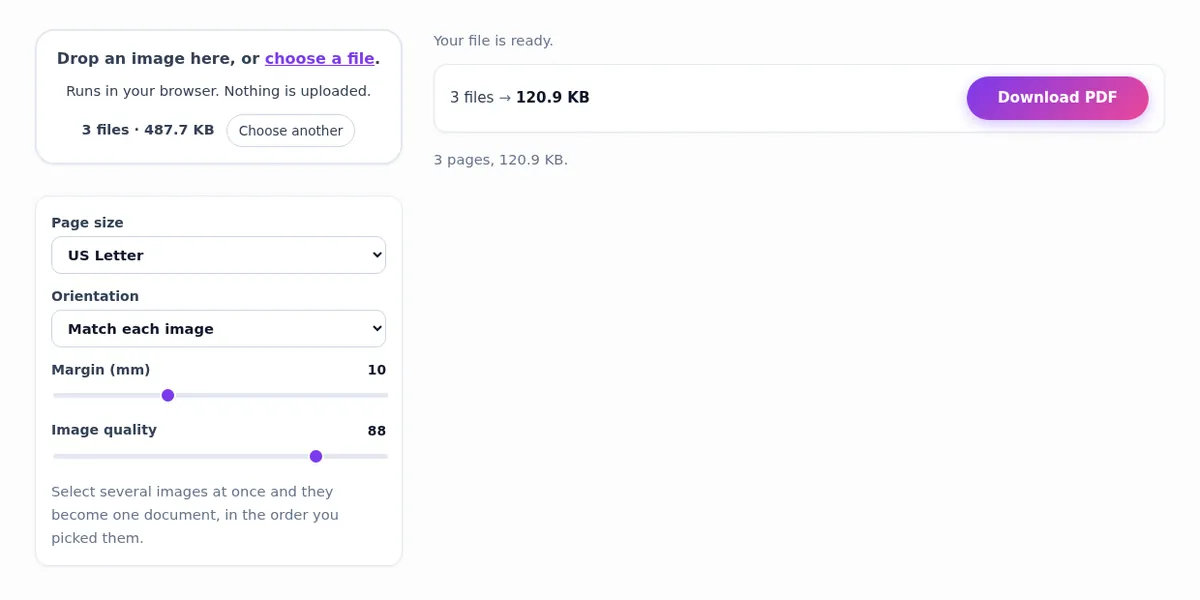
For scanned documents, lower Image quality to about 70 to keep the PDF small enough to email. If the pages were photographed at an angle, square them up first with the Perspective Corrector; our guide to scanning documents with your phone covers light and angle. The result is a picture of each page, so the text inside is not selectable; run the pictures through Image to Text if you also need the words.
PDF to JPG or PNG: pages into pictures
The opposite job comes up when you want one page of a PDF in a presentation, a flyer on Instagram, or a page of a form sent to someone who cannot open PDFs. PDF to Image renders each page with pdf.js, the PDF engine inside Firefox.
- Choose the PDF.
- Set Resolution: 2 renders a page at about 144 DPI, fine for screens; 4 gives about 288 DPI, sharp enough to print or zoom into small text.
- Choose PNG for pages that are mostly text, JPG for pages that are mostly photos, and every page or only the first. Several pages download as one zip.
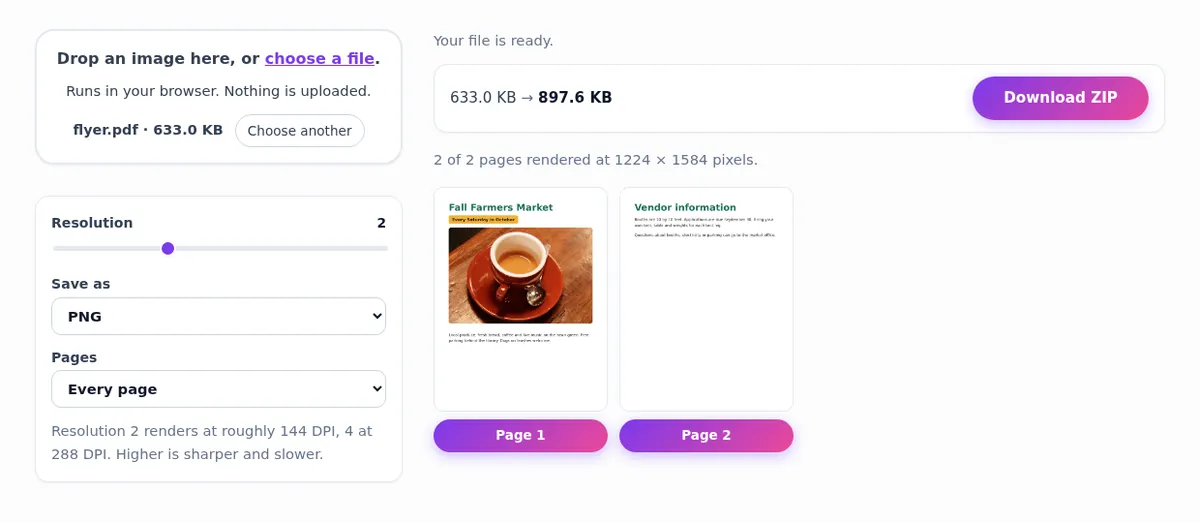
Rendering turns text into pixels, so the pictures are not searchable. Password-protected PDFs have to be unlocked in a PDF reader first. The whole file is processed in your browser, so a long document takes a while on a phone, and the tab must stay in front: browsers pause background tabs, and pdf.js stops with them.
PNG to SVG: turning a logo into a vector
A PNG or JPG is a grid of pixels; enlarge it and the edges go soft. An SVG describes shapes as curves, so it stays sharp at any size, from a favicon to a billboard. Converting from pixels to vectors is called tracing, and the SVG Vectorizer does it in the browser.
- Start from the biggest, cleanest copy of the logo you have.
- Set Colours to the number of flat colours in the artwork (often two to six) and Detail to how closely the shapes should follow the edges.
- Tick "Drop the background colour" for a transparent SVG, then download.
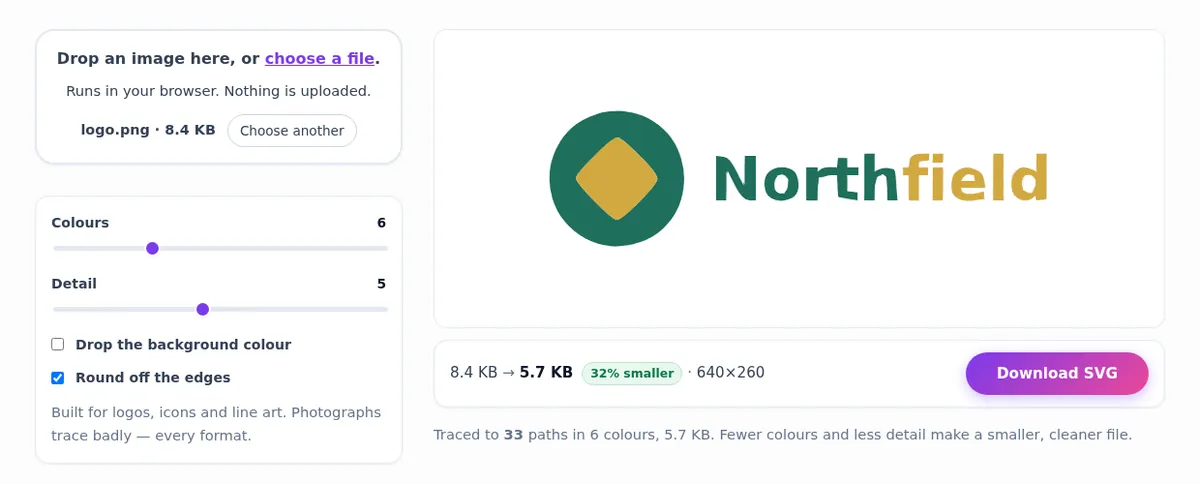
Zoomed in six times, the difference is obvious. The PNG blurs; the SVG stays crisp. The zoom also shows that tracing is not perfect: a small notch appeared where the N meets its diagonal. Raising Detail or tidying the shape in a vector editor fixes that.
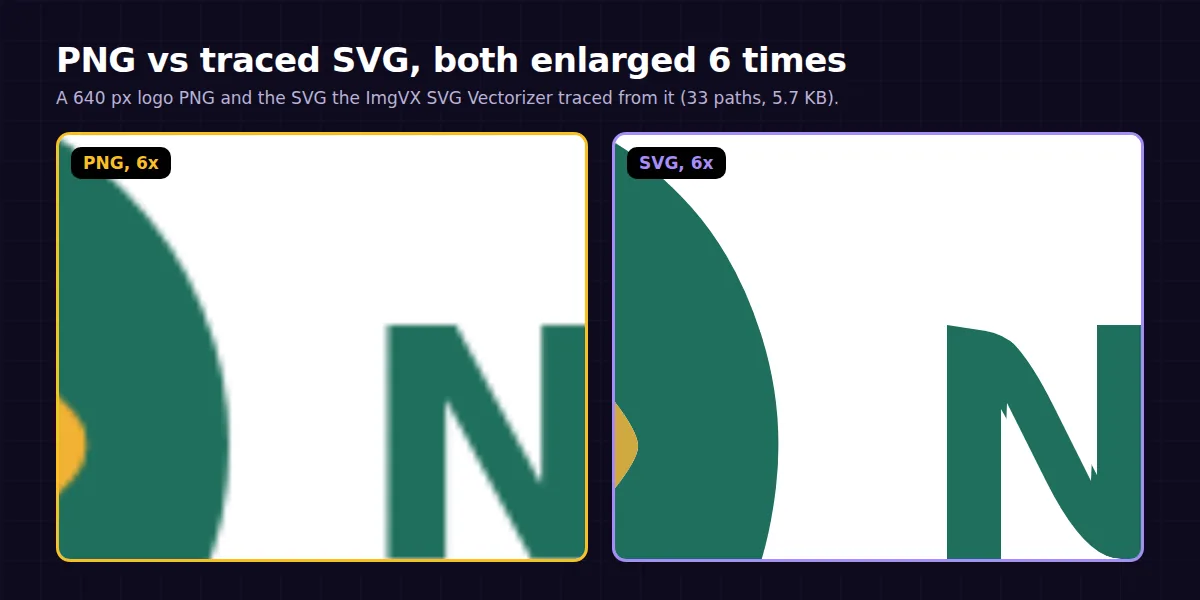
Tracing is for flat artwork: logos, icons, signatures, stamps and line drawings. A photograph contains thousands of subtle tones, so a trace either loses most of them or produces an enormous file of tiny shapes. Run the finished SVG through the SVG Optimizer to trim it further, and use the Favicon Generator to turn the logo into browser icons.
Image to text: copy the words out of a picture
"Image to text" is one of the most searched image tasks of all: copying an address from a screenshot, a paragraph from a photo of a book, a tracking number from a label. Image to Text (OCR) runs Tesseract, a long-established open-source OCR engine, in your browser, in twelve languages: English, Spanish, French, German, Italian, Portuguese, Dutch, Russian, Arabic, Hindi, simplified Chinese and Japanese.
- Drop in the screenshot, photo or scan.
- Choose the language. The first run of each language downloads a model of a few megabytes, then it is cached.
- Read the result, fix anything wrong, and press Copy text.
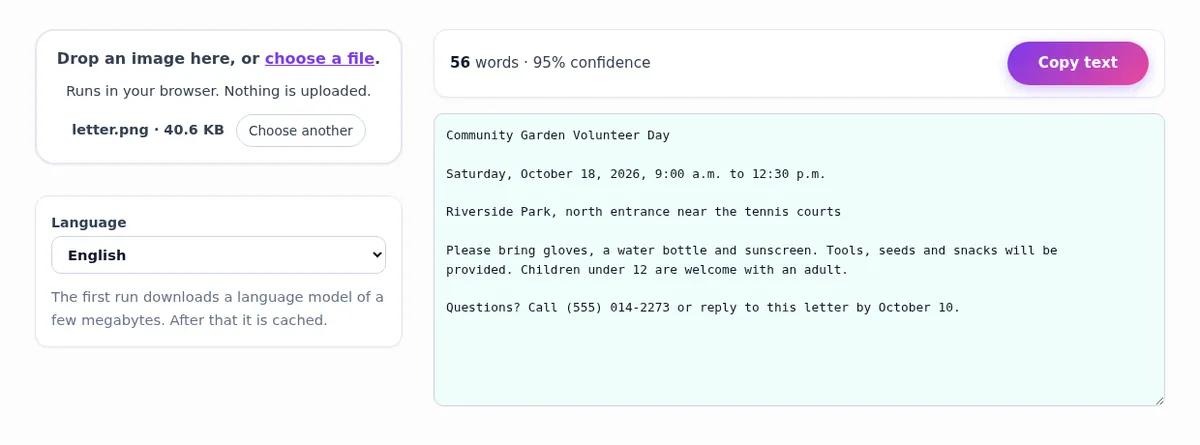
On that clean printed letter, every word, date and phone number came out right. Accuracy depends almost entirely on the picture:
- Reads well: screenshots, printed pages photographed flat in good light, receipts and labels in clear type.
- Reads poorly: handwriting, curved book pages, low light, decorative fonts, and small text in a wide photo.
- Improve it: crop to just the text with the Image Cropper, straighten a photographed page with the Perspective Corrector, and enlarge small, blurry text with the Image Upscaler first.
Always proofread names and numbers before you rely on them. Because recognition happens on your device, OCR is safe to use on bank letters, ID cards and receipts. To remove text from a picture rather than copy it, use the Text Remover.
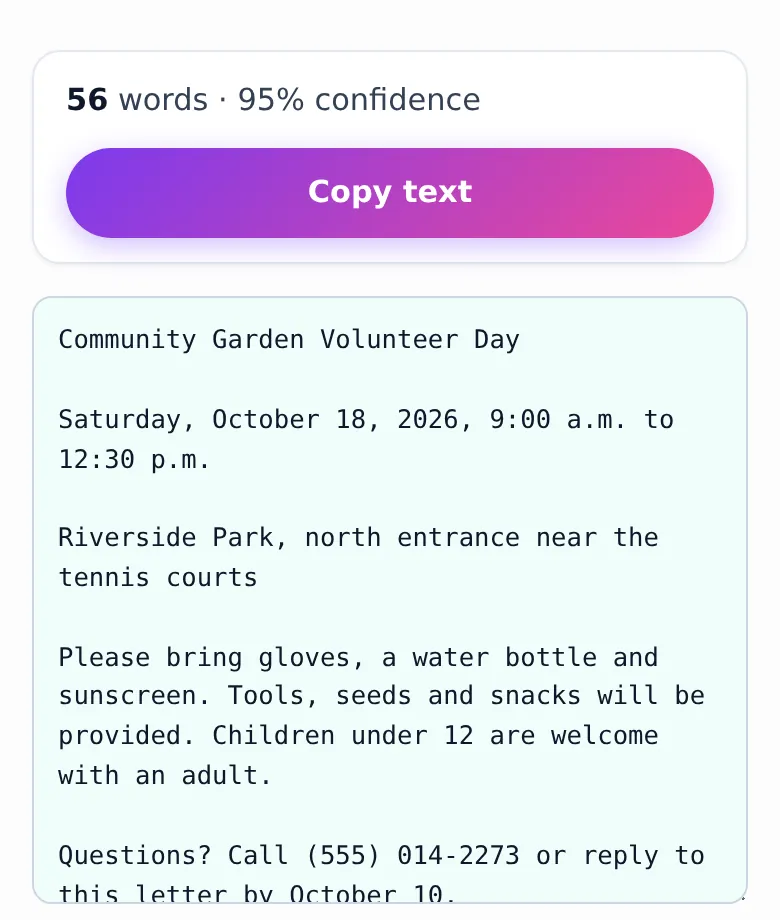
Image to Base64 and back
Developers sometimes need an image as text: a small icon inside an HTML email, a CSS file or a JSON payload. Image to Base64 outputs a complete data URI, a CSS background rule, an HTML img tag or the raw Base64 text.
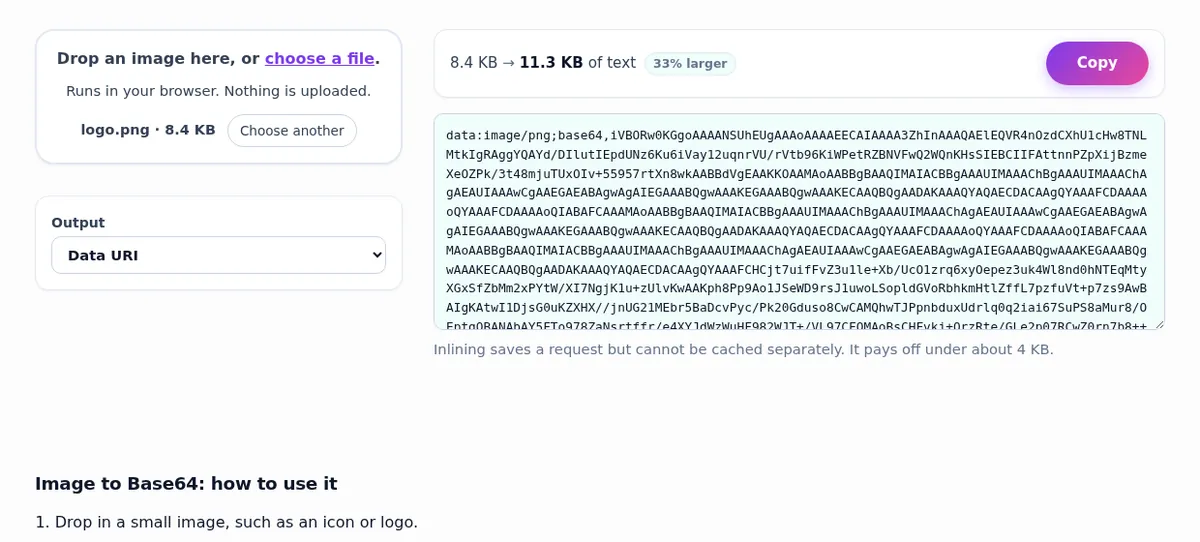
Base64 is always about a third larger than the file, and an embedded image cannot be cached separately, so it only pays off for very small images. Shrink the image first with the Image Compressor. To turn a Base64 string from source code or an API response back into a picture, paste it into Base64 to Image.
GIFs, frames and favicons
- Pictures to GIF: the GIF Maker plays frames in file-name order, so name them 01, 02, 03. 100 ms per frame is ten frames a second. GIF holds only 256 colours per frame, so tick Dither for photos and keep frames 480 to 800 pixels wide.
- GIF to PNG frames: the GIF Frame Extractor saves every frame as PNG, JPG or WebP in a zip. It uses a browser decoder that Chrome, Edge and Opera have; Firefox and Safari do not yet, and the tool says so. A single still from a GIF is also one click with the GIF to PNG preset.
- Logo to favicon: the Favicon Generator turns a square logo into a favicon.ico plus the PNG sizes phones use. The favicon sizes guide lists the HTML to add.
Converting many files at once
For a folder of photos, the Bulk Image Resizer converts and resizes everything in one pass and returns a zip; batches of up to five images are free. HEIC to JPG converts one iPhone photo at a time, so for a whole camera roll it is quicker to switch the iPhone to Most Compatible before you shoot. For PDFs, Image to PDF takes as many pictures as you select, and PDF to Image returns every page in one zip.
Converting on iPhone and Android
All of these tools work in Safari or Chrome on a phone with nothing to install. Tap the drop zone to choose from Photos or Files, convert, and save. On iPhone, downloads land in Files, Downloads; open the image and use Share, Save Image to move it into Photos. For iPhone photos that a website rejects, HEIC to JPG is the fix, and Image to Text works well on a phone for copying text from a photo you just took.
Common conversion mistakes
- Converting to PNG to "improve quality". It only makes the file bigger. Use the upscaler or enhancer for quality.
- Saving a transparent logo as JPG. The background turns white. Keep it PNG or WebP; see transparent images.
- Converting back and forth between lossy formats. Each JPG or WebP save loses a little more. Convert once, from the original.
- Tracing a photo to SVG. Vectorizing is for flat artwork; a photo becomes a huge, ugly file.
- Turning a PDF into images and then expecting searchable text. Pictures of pages are pictures; use OCR to get the words back.
- Putting big photos in Base64. They get a third bigger and cannot be cached.
- Sharing the original instead of the copy. Converting here re-encodes the pixels, which leaves camera data such as GPS location behind, but the original file still carries it. Check a file with the EXIF Viewer, and strip it without re-encoding using the Metadata Remover.
More fixes are in the troubleshooting table, and the image editing FAQ covers questions about resizing, compressing and editing.
Frequently asked questions
How do I save an image as JPG instead of WebP?
Your browser saves the file the website sent, and many sites now send WebP. Save it as it is, then open the WebP to JPG converter, drop the file in and download a JPG. Quality 90 keeps nearly all the detail. If the image has a transparent background, convert to PNG instead, because JPG turns transparency white.
Why is my JPG bigger than the WebP I converted it from?
WebP compresses photos more efficiently than JPG, so the same picture usually needs more bytes as a JPG. In our test a 46.6 KB WebP became a 67.4 KB JPG at quality 90. If the size matters, lower the quality or set a target in the Image Compressor.
How do I convert a PDF to JPG for free?
Open PDF to Image, choose the PDF, pick JPG (or PNG for pages that are mostly text), choose every page or just the first, and download. Resolution 2 gives about 144 DPI, enough for a screen; 4 gives about 288 DPI for printing. Several pages download as one zip.
How do I turn several pictures into one PDF?
Select all the pictures at once in Image to PDF, in the order you want the pages, choose US Letter (or A4 outside North America), and download one PDF. Square up photographed pages first with the Perspective Corrector.
How do I convert a PNG logo to SVG?
Use the SVG Vectorizer: drop the logo in, set Colours to the number of flat colours in it, raise Detail if corners are being rounded off, and download the SVG. It works for flat logos, icons and line art; photos trace badly. Check the result zoomed in, then shrink it with the SVG Optimizer.
How do I copy text from an image?
Open Image to Text (OCR), add the screenshot or photo, choose the language and copy the result. Screenshots and flat printed pages read very well; handwriting and curved pages do not. Proofread names and numbers before you rely on them.
Can I convert a TIFF or HEIC file in any browser?
Yes. Chrome, Edge and Firefox cannot decode either format themselves, so ImgVX AI loads its own HEIC and TIFF decoders when you open one. Use HEIC to JPG for iPhone photos, or the image converter to turn a TIFF scan into JPG, PNG, WebP or BMP. The supported formats table lists every format.
Does converting JPG to PNG improve quality?
No. PNG is lossless, so it keeps exactly what the JPG already had, compression blocks included, in a much larger file. Convert to PNG only when you need a format that will not lose more detail on later edits, or when a site insists on PNG. To make a small photo genuinely clearer, use the Image Upscaler.
Are my files uploaded when I convert them?
No. Every converter on ImgVX AI decodes and re-encodes the file inside your browser, including PDFs and OCR, so scans of IDs, receipts and contracts never leave your device. The privacy policy explains the few things that are sent, such as sign-in details.
How do I make a GIF from pictures?
Name the pictures 01, 02, 03 so they sort in order, drop them into the GIF Maker, set the frame delay (100 ms is ten frames a second) and download. Keep frames 480 to 800 pixels wide so the GIF stays small enough to post. To take a GIF apart instead, use the GIF Frame Extractor.
Convert your file now
Free, in your browser, with nothing uploaded.