
How to Extract a Color Palette From an Image (Free)
To extract a color palette from an image, open the free Colour Palette Extractor, drop in the image and choose how many colors you want, from 3 to 12. The main colors appear at once as HEX, RGB and HSL codes, each with its share of the image, plus a CSS block to copy. The image is never uploaded and there is no sign-up. Below are real palettes from 18 runs, how many colors to take, why the subject’s color is often missing, and how to check the colors work together as text and background.
The short answer
- Tool: Colour Palette Extractor. Free, no account, works in your browser.
- What you get: 3 to 12 colors as HEX, RGB and HSL, the percentage of pixels in each, and CSS variables (
--color-1,--color-2…). - Speed: 107 to 118 milliseconds per image in our test.
- How many: six for a photo, three to six for a logo or screenshot. Ask for twelve when the subject is small.
- Not the right tool for one exact pixel (use the Colour Picker) or for official brand colors you can get from a brand guide.
How do you extract a color palette from an image?
- Open the Colour Palette Extractor in a current browser on a computer or a phone.
- Set the Colours slider to the number you want, from 3 to 12. The default is 6.
- Drop in the image, or click to choose it. A photo, a screenshot, a logo or a scan of a painting all work. The palette appears straight away.
- Copy what you need. Each swatch lists its HEX code, its
rgb()andhsl()values and the percentage of pixels in that shade. Under the swatches, a:root { }block holds every color as a CSS variable, ready to paste into a stylesheet.
To try another count, move the slider and drop the same image again. Nothing is sent anywhere: the image is read in your browser, so a client’s unreleased design or a private photo never leaves your device.
How does a color palette extractor choose the colors?
Even a small photo holds a great many slightly different colors, so every extractor has to group them. Many tools, such as Pincel’s, use k-means clustering, which starts from random guesses; Pincel’s own page says its results can differ slightly between runs for that reason. The ImgVX tool uses a simpler, fixed method, read from its source code:
- It shrinks the image to 180 pixels on its longest side. That is plenty to find the main colors and keeps each run near a tenth of a second.
- It skips see-through pixels. Any pixel more than half transparent is left out, so the empty area around a logo does not count.
- It sorts every other pixel into one of 4,096 boxes, 16 steps each of red, green and blue, and counts the pixels in each box.
- It lists the fullest boxes first, each as the average color of the pixels inside it.
- It drops near-duplicates. A color whose red, green and blue together differ by less than 60 from one already listed is skipped, so you get distinct colors rather than six beiges.
Two things follow. The same image always gives the same palette, so a palette you share can be reproduced by anyone. And the order is by area, not by importance: the colors that cover the most pixels come first, whatever they belong to. That second point explains most surprising palettes.
How many colors should you extract from an image?
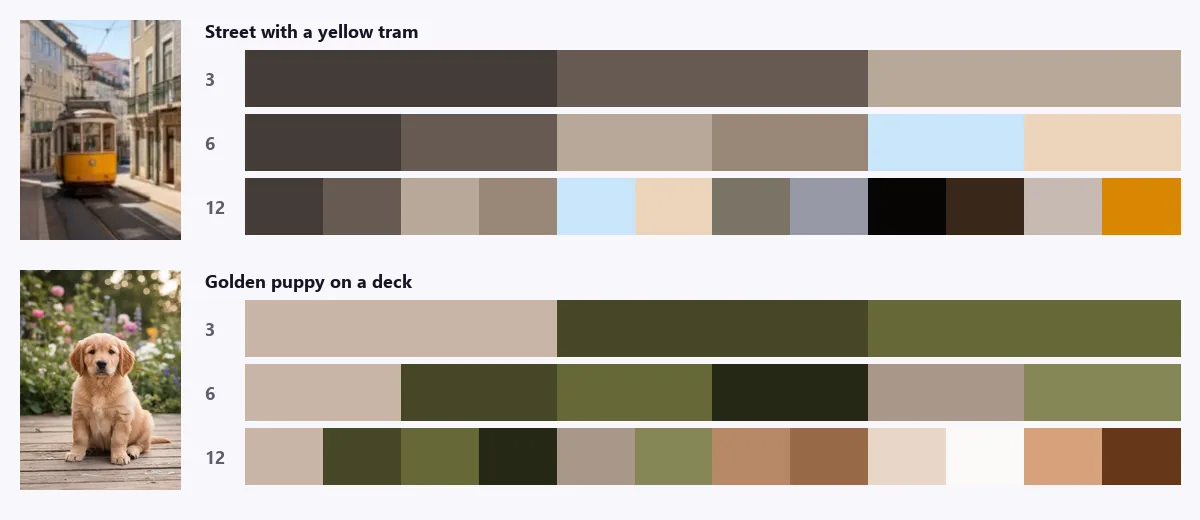
We ran the live tool on 19 November 2026 in Microsoft Edge 157 on Windows, on the photos from our own home page. The table shows what each count gave.
| Image | 3 colors | 6 colors | 12 colors |
|---|---|---|---|
| Golden puppy on a deck, garden behind | Beige deck, two olive greens | Adds a dark green, a grey-beige and a light olive | Adds the fur: #b88867, #986948, #d6a27b and a dark brown |
| Street with a yellow tram | Three browns and beiges from the buildings | Adds a pale sky blue (#c9e5fa) and a warm cream | Last of the twelve: the tram’s orange-yellow, #d98704, at 0.5 percent of pixels |
| Hummingbird among leaves | Two soft greens and a mauve-grey | Six muted greens and mauves | Only 8 colors: the photo had no more distinct ones |
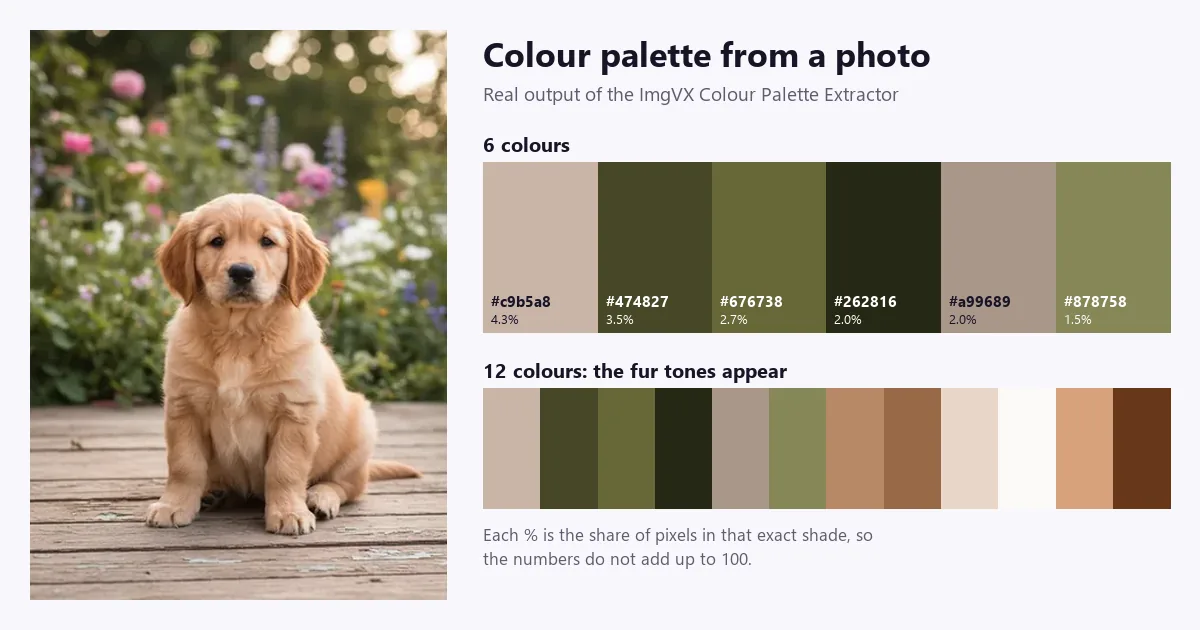
The lesson is the same in both main photos: six colors described the background, and the subject only appeared at twelve. The puppy covers less of the frame than the deck and the garden, and the tram is a small object in a street of brown walls. Both colors were there all along; they were simply further down a list sorted by area.
A practical way to work:
- Extract twelve, keep five or six. Twelve colors cost nothing extra, and it is easier to delete swatches than to guess which ones are missing.
- For a logo, an icon or an app screenshot, three to six is usually enough: flat designs have few colors, and Instant Gradient’s guide suggests the same three to five.
- For a design palette, aim for one or two main colors, one accent, and a light and a dark neutral for backgrounds and text. From the puppy photo that could be the olive #474827, the fur #b88867 as the accent, and #fbfaf8 and #262816 as the neutrals.
- If the subject matters more than the background, crop to it first with the Image Cropper. The palette then has fewer pixels of background to rank above it.
Do photos, screenshots and logos give different palettes?
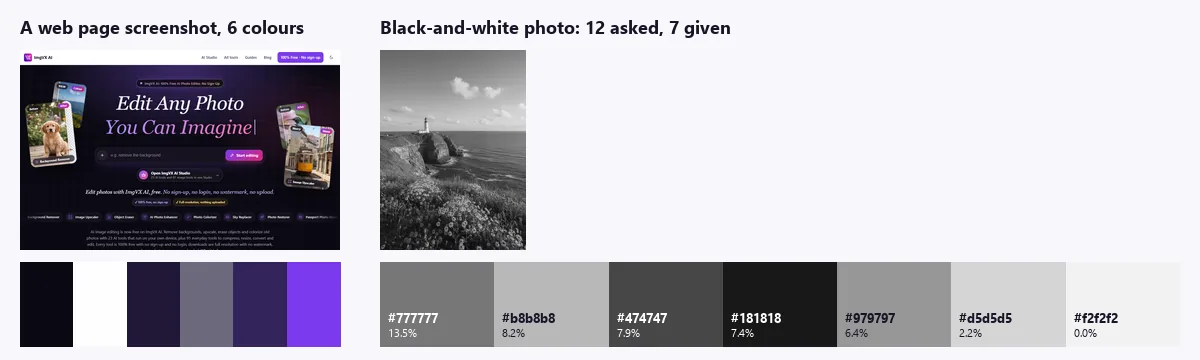
Yes, and the difference is useful to know before you trust a HEX code.
| Image type | What we got | Are the codes exact? |
|---|---|---|
| Web page screenshot (imgvx.com, 1280 × 800) | Near-black #0b0912 at 36.9 percent, white, three dark purples and the violet button color #7c3aed | Yes for flat areas: #0b0912 and #7c3aed are exactly the background and accent values in the site’s own stylesheet |
| Photo (puppy, tram, hummingbird) | Soft, slightly muted tones | No. Each code is the average of many similar pixels, so it may not match any single pixel |
| Black-and-white photo (lighthouse) | Greys only, from #181818 to #f2f2f2; 7 colors when 12 were asked for | They are true greys (red, green and blue equal) |
| Logo on a transparent background | One color, #ffffff, 100 percent | Yes; the transparent area is ignored |
For a website or an app, a screenshot works well: take it at 100 percent zoom so text edges are sharp, and the large flat areas come back with their real codes. For a logo, use the original PNG or SVG rather than a photo of a sign or a printout, because light and the camera shift every color. Photos are best for mood: the colors of a room, a sunset or an outfit you want a design to feel like, rather than codes that must match something exactly. When you need the precise value of one spot, click it with the Colour Picker instead.
What do the percentages next to each color mean?
Each percentage is the share of the counted pixels that fell into that one shade’s box. Because similar shades land in neighbouring boxes and near-duplicates are left off the list, the numbers rarely add up to 100:
- Six colors from the puppy photo covered 16.0 percent of its pixels, because a garden and a wooden deck are made of thousands of slightly different shades.
- Six colors from the web page screenshot covered 50.0 percent, because large areas are one flat color; the background alone was 36.9 percent.
So read the percentages as a ranking, not a recipe. A color at 4 percent in a photo can still be the one the eye sees most, while a 0.5 percent color, like the tram, can be the one the picture is about.
Will the extracted colors work as text and background?
Not automatically. A palette taken from a photo is often a set of similar, mid-toned colors that look good side by side but are hard to read on top of each other. The Web Content Accessibility Guidelines (WCAG 2.2, success criterion 1.4.3) ask for a contrast ratio of at least 4.5 to 1 for normal text and 3 to 1 for large text, meaning 18 point, or 14 point bold; 7 to 1 meets the stricter AAA level. We checked pairs from our palettes with the WCAG formula:
| Text color on background | From | Contrast ratio | Result |
|---|---|---|---|
| #0b0912 on #fefeff | Web page screenshot | 19.62 : 1 | Passes AAA |
| #ffffff on #7c3aed | Web page screenshot | 5.70 : 1 | Passes AA for normal text |
| #7c3aed on #0b0912 | Web page screenshot | 3.47 : 1 | Large text only |
| #262816 on #c9b5a8 | Puppy photo | 7.63 : 1 | Passes AAA |
| #474827 on #c9b5a8 | Puppy photo | 4.79 : 1 | Passes AA |
| #a99689 on #c9b5a8 | Puppy photo | 1.44 : 1 | Fails: do not put text on it |
| #443c38 on #ecd4bb | Tram photo | 7.54 : 1 | Passes AAA |
| #685a54 on #b7a898 | Tram photo | 2.85 : 1 | Fails |
| #5b6455 on #a79aa5 | Hummingbird photo | 2.30 : 1 | Fails |
| #474b43 on #bab3bb | Hummingbird photo | 4.35 : 1 | Large text only |
The pattern is reliable: pair the darkest color of a palette with the lightest, and keep the mid-tones for shapes, borders and backgrounds without text. If the photo has no dark enough or light enough color, add a near-black or near-white neutral yourself; most good palettes have one. To see how the palette looks to people with color blindness, run a mock-up through the Colour Blindness Simulator, and read the guide to color-blind friendly images for which pairs to avoid.
How do you use the palette in CSS, Figma or Canva?
- CSS: copy the
:root { --color-1: … }block under the swatches into your stylesheet, then rename the variables by their job, for example--brand,--accent,--textand--surface, so they still make sense later. - Figma, Canva and most design apps accept a HEX code in their color field. Paste each code and save it in the app’s own color styles or brand kit.
- Print: HEX and RGB are screen colors. A printer turns them into ink, and the result can look duller. For print work, match the colors to a printed swatch guide or ask the printer for a proof.
- Painting and crafts: the same palette can guide paint mixing or thread choice. The Paint by Numbers tool turns a photo into a numbered outline with a color key, and Image to Pixel Art reduces it to a small retro palette.
If you want to change a color in the image itself rather than copy it, that is a different job: see how to change the color of an object in a photo, which uses the Colour Replacer.
Which color palette extractor should you use?
We read each tool’s own page on 19 November 2026. The table lists what those pages state.
| Tool | Where the image goes | Colors | Formats you get | Shows each color’s share |
|---|---|---|---|---|
| ImgVX AI Colour Palette Extractor | Stays in your browser | 3 to 12 (default 6) | HEX, RGB, HSL, CSS variables | Yes, as a percentage; same result every run |
| Cloudinary Image Palette Extractor | Uploaded | 4, 6, 8, 12 or 16 | HEX, RGB, CSS variables, Tailwind config, JSON, ZIP | Yes, as bar widths; JPG, PNG or WebP up to 20 MB |
| Pincel palette extractor | Stays in your browser | 4 to 10 | HEX, RGB, HSL, PNG swatch, CSS variables, Tailwind | Not stated; results can vary slightly between runs |
| Image Online palette from image | Stays in your browser | 2 to 12 (default 5) | HEX, RGB, HSL, CSS block, palette card image | No |
| Instant Gradient | Stays in your browser | 2 to 8 | HEX, or send to its gradient maker | Not stated |
If you need a Tailwind config or JSON file, Cloudinary and Pincel export those directly; with ImgVX you copy the CSS block and convert it. If you need a palette card image to post, Image Online makes one. ImgVX is the choice when you want to know how much of the image each color covers, need the same result every time, or prefer that the image never leaves your device. For other inspection tools in the same family, the free AI image editing guide lists everything that runs on your device.
Troubleshooting
| What you see | Cause | Fix |
|---|---|---|
| The subject’s color is missing | The background covers more pixels | Set 12 colors, or crop to the subject first with the Image Cropper |
| Fewer colors than you asked for | The image has no more colors that are clearly different | Normal for black-and-white, muted or one-color images; nothing to fix |
| The colors look dull compared with the photo | Each color is an average of similar pixels; bright highlights are small | Pick the bright spot with the Colour Picker, or brighten the photo first in Image Adjustments |
| A logo color is slightly off | JPEG compression or a photo of the logo shifts colors | Use the original PNG or SVG, or the brand’s published codes |
| The background of a logo is not in the palette | Pixels more than half transparent are skipped | Expected; add a background color yourself if you need one |
| A near-white shows saturation 100 percent in HSL | At almost full lightness, a tiny tint gives a large saturation number (#fefeff reads hsl(240, 100%, 100%)) | Ignore it; use the HEX code, which is exact |
| Text in the palette colors is hard to read | Mid-tones paired with mid-tones | Pair the darkest with the lightest and check 4.5 : 1 (see the table above) |
| You want to see the full range of tones, not a palette | A palette lists colors, not their spread | Use the Histogram Viewer |
Questions
How do I get a color palette from an image?
Open the free Colour Palette Extractor, drop in the image and set the Colours slider (3 to 12, six by default). The palette appears straight away as HEX, RGB and HSL codes, with each color's share of the image and a CSS block you can copy. The image stays in your browser and there is no sign-up.
How many colors should I extract from an image?
Take six for a photo and three to six for a logo, an icon or a web page screenshot. In our tests, six colors from a photo were mostly the background; the colors of the subject itself, such as a golden puppy or a yellow tram, only appeared at twelve. Extract twelve, then keep the five or six you will actually use.
Why does the palette miss the main color of my subject?
The palette ranks colors by how many pixels share them, and a background usually covers more of the picture than the subject. Raise the color count, or crop the image to the subject with the Image Cropper first and extract again. For one exact color, click it with the Colour Picker.
Can I get the exact HEX code of a logo or website color?
Yes, for flat colors. On a screenshot of the ImgVX AI home page, the extractor returned #0b0912 and #7c3aed, exactly the background and accent values in the site's own CSS. Photos give averages instead, so for brand work use a PNG or SVG of the logo, not a photo of it.
Why don't the percentages add up to 100?
Each percentage is the share of pixels in that one shade. Similar shades are grouped separately and near-duplicates are left out of the list, so the listed colors usually cover only part of the picture: 16.0 percent for six colors from the puppy photo. On flat images with large areas of one color, such as a dark web page, the listed colors cover much more. More help: ImgVX AI help docs.
Why did I get fewer colors than I asked for?
The tool skips any color that is too close to one it has already listed, so an image without enough different colors returns fewer. A black-and-white photo gave seven greys when twelve were asked for, a hummingbird photo in soft greens gave eight, and a one-color logo gave one. Browse: all free image tools.
Is it safe to extract colors from a private image?
Yes. The ImgVX AI Colour Palette Extractor reads the image in your browser and never uploads it, so a client mock-up or an unreleased design stays on your device. It is free, with no account, watermark or daily limit.
Do transparent pixels count in the palette?
No. Pixels that are more than half transparent are skipped, so a logo on a transparent background gives the colors of the logo only. Our white ImgVX logo on a transparent PNG came back as a single color, #ffffff, covering 100 percent of the counted pixels.