
How to Make a Transparent Signature PNG (Free)
To make a transparent signature, sign plain white paper with a dark pen, take a photo from straight above in good light, and open it in a signature extractor that removes the paper. The free Signature Extractor does this in your browser and downloads a cropped PNG with a transparent background, ready to place on a PDF, a Word file or an email. There is no sign-up and no watermark, and the photo never leaves your device.
The short answer
- Tool: Signature Extractor. No AI model, nothing to install, works on phones.
- You need: white paper, a dark felt-tip or gel pen, and a photo taken in daylight.
- You get: a PNG (or WebP) with only the ink left, cropped close, in black, blue or your own colour.
- Remember: a signature image is not a verified e-signature. Use it for letters and everyday forms, not as proof of who signed.
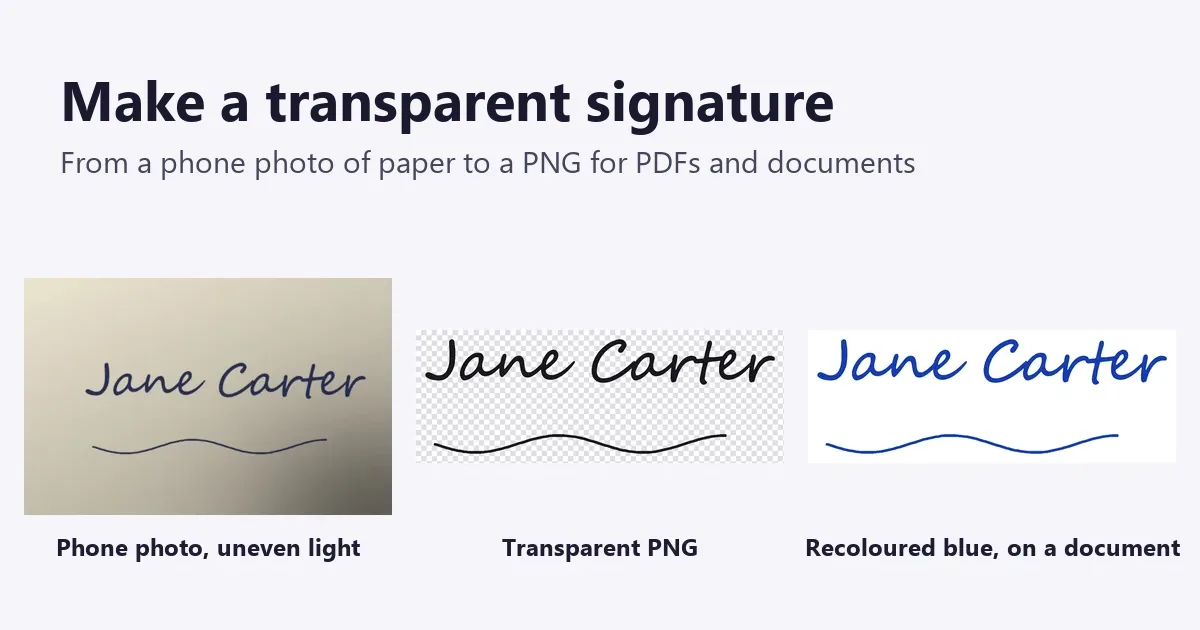
How to make a transparent signature in five steps
- Sign the paper. Plain white printer paper, a black or dark blue felt-tip or gel pen, and your normal signature at a comfortable size. Sign two or three times and keep the best.
- Photograph it. Hold the phone straight above the page in daylight or under a bright ceiling light, and fill most of the frame with the signature. A flatbed scan works too.
- Open it in the tool. Drop the photo into the Signature Extractor. The paper disappears in the preview straight away.
- Adjust if needed. Raise Ink sensitivity if faint strokes are missing; lower it if paper texture shows. Pick an Ink colour.
- Download the PNG. Keep Crop to the signature ticked so the file has only a small margin around the ink.
Why simple background removers leave a grey box
A phone photo of paper is never one colour. The light falls off towards one corner, your hand or the phone casts a shadow, and a warm lamp tints the page. In our test photo above, the lower right corner is almost as dark as the ink.
Tools that make one colour transparent everywhere, such as GIMP's Color to Alpha with white or an ImageMagick -transparent white command, use a single cut-off for the whole page. Set it low and the shadow stays as a grey smudge; set it high and the thin parts of the letters go with it. AI background removers are trained on people and products, and a few thin lines of ink are not what they look for.
The Signature Extractor estimates the brightness of the paper across the page first, with the ink wiped out, then judges each pixel against the paper right around it. A stroke in the shadow is still darker than its own patch of shadow, so it is kept, while the shadow itself goes. That is why the middle image above has no box.
What each setting does
| Setting | Range and default | When to change it |
|---|---|---|
| Ink sensitivity | 5 to 80, default 40 | Higher picks up faint, light strokes; lower removes paper grain and smudges. |
| Edge softness | 0 to 40, default 14 | Higher gives smoother, anti-aliased lines; 0 gives hard pixel edges. |
| Ink colour | Black, Blue ballpoint, Dark blue, As photographed, My own colour | Black for forms; blue so a printed page looks signed by hand. |
| Line weight | As written, Bolder, Thinner | Bolder when the signature will be printed small and thin strokes break up. |
| Remove specks and paper texture | On | Turn off only if a dot in your signature (an i or a full stop) is lost. |
| Crop to the signature | On, margin 2% of the photo's longer side | Turn off to keep the whole page size, for example to line it up with a scan. |
| Save as | PNG or WebP | PNG for documents and PDFs; WebP only for a web page. |
If the tool says no ink was found, the strokes were too pale for the paper around them. Raise Ink sensitivity, or photograph the signature closer with a darker pen.
How to put the signature on a PDF, Word or Google Docs
- Adobe Acrobat Reader (free): open the PDF, choose Fill & Sign, then Sign and Add signature, and pick Image to import the PNG. Acrobat saves it for the next document.
- Microsoft Word: Insert > Pictures, choose the PNG, then set Wrap Text to In Front of Text so you can drag it onto the signature line without moving the text.
- Google Docs: Insert > Image > Upload from computer, click the image and choose In front of text.
- Email footer: add the PNG as an image in your mail app's signature settings. Keep it small, around 200 to 300 px wide, so it does not dominate the message.
Because the background is transparent, the signature sits over the line, a coloured letterhead or a form field without a white box around it. If you need a paper form as a PDF first, photograph it and clean it with the Document Scanner, then combine the pages with Image to PDF.
Signatures for online application forms
Exam, visa and job portals often ask for a signature image of an exact size, such as a few hundred pixels wide and under 20 KB, usually as a JPG on white rather than a transparent PNG. Make the clean signature here first, then resize it with the Image Resizer and bring it under the limit with the Image Compressor. Our guide to photos and signatures for online forms goes through the common size rules step by step.
Is a signature PNG a real digital signature?
No. It is a picture of your handwriting. The US ESIGN Act (2000) says a signature cannot be denied legal effect only because it is electronic, and the EU's eIDAS Regulation says the same for a simple electronic signature, so a pasted image is often accepted for everyday letters, forms and invoices. But anyone who has the file can paste it, and the document records nothing about who did or when.
For a contract, a lease or anything you may need to prove later, use the signing step of an e-signature service, which keeps a record of who signed and when, or the certificate-based signing in Acrobat. Use the Signature Extractor for your own signature only.
Why it matters that the photo is not uploaded
A clean signature is exactly what someone would need to forge one. Most online signature removers upload the photo to their server to process it, and their pages promise to delete it after a set time. The Signature Extractor runs entirely in your browser: the photo is read and the PNG is drawn on your device, and nothing is sent anywhere. You can check this by loading the page, turning off Wi-Fi and mobile data, and running it anyway.
When to use a different tool
| You have | Use |
|---|---|
| A logo or icon on a plain white or coloured box | Make Background Transparent |
| A photo of a person, a pet or a product | Background Remover |
| A signature you want as a scalable vector (SVG) | SVG Vectorizer, after extracting it |
| A whole page that should look scanned | Document Scanner |
For the wider picture of which transparent-background method suits which image, see how to make a background transparent.
Frequently asked questions
How do I make my signature transparent for free?
Sign plain white paper with a dark pen, photograph it from straight above in good light and open the photo in the free Signature Extractor. It removes the paper, crops close to the ink and downloads a transparent PNG. There is no sign-up and no watermark, and the photo is not uploaded.
Why does my signature PNG show a grey or white box?
Either the file was saved as JPG, which cannot be transparent, or the tool used one brightness cut-off for the whole page and the darker corner stayed. Save as PNG, and use a tool that compares the ink with the paper around it, as the Signature Extractor does, so a shadow from your hand does not become a grey patch.
How do I add a transparent signature to a PDF?
In Adobe Acrobat Reader, open Fill & Sign, choose Add signature and pick the Image option to import your PNG. In any editor that inserts images, add the PNG and drag it onto the line. To build a PDF from pictures in your browser, use Image to PDF.
Is a picture of my signature legally binding?
It can be acceptable for everyday letters and forms, and US and EU law do not reject a signature only because it is electronic. But an image proves nothing about who placed it or when. For contracts, use an e-signature service that records who signed and when. More help: ImgVX AI help docs.
What pen and paper give the cleanest signature?
A black or dark blue felt-tip or gel pen on plain white printer paper. Light ballpoint strokes are thin and grey, so they are the first to break up. Avoid lined or squared paper, because the lines are dark marks too. Browse: all free image tools.
Can I change the colour of my signature?
Yes. The Signature Extractor recolours the ink to black, blue ballpoint, dark blue or any colour you pick, or keeps the colour as photographed. Many people choose blue so a printed page looks hand-signed.
Sources: settings, ranges, defaults and the crop margin checked against the Signature Extractor code on 5 November 2026; the figure is the tool's real output on a phone photo of a signature. Acrobat, Word and Google Docs menu names from each product's help pages. Legal points: US Electronic Signatures in Global and National Commerce Act (15 U.S.C. 7001) and EU Regulation 910/2014 (eIDAS), Article 25. This is general information, not legal advice.
Make your transparent signature now
Free, in your browser, with no sign-up, no watermark and no upload.