
YouTube Thumbnail Size 2026: Resize to 1280x720 Free
A YouTube thumbnail should be 16:9. YouTube Help recommends 3840 × 2160 pixels, with a minimum width of 640, in JPG or PNG, under 2 MB from a phone or 50 MB from a computer. The long-standing 1280 × 720 is still accepted and fits both limits. To get any photo there without stretching it, crop it to 16:9 and scale it to size, which the free YouTube thumbnail cropper does in one step in your browser.
The YouTube thumbnail size, from YouTube itself
Most guides still say “1280 × 720, 2 MB”. YouTube’s own help page, Add video thumbnails, now says more than that. These are its numbers as of 26 October 2026:
| Requirement | Regular videos | Shorts |
|---|---|---|
| Recommended resolution | 3840 × 2160 | 2160 × 3840 |
| Minimum | 640 pixels wide | 640 pixels tall |
| Aspect ratio | 16:9 | 9:16 |
| Formats | Image formats such as JPG or PNG | |
| File size, uploading from mobile | 2 MB | — |
| File size, uploading from desktop | 50 MB (videos, Shorts and podcasts) | |
Source: YouTube Help, “Add video thumbnails” (support.google.com/youtube/answer/72431), checked 26 October 2026. YouTube changes these from time to time, so check the page if an upload is refused.
The constant is the shape. Every size in the 16:9 family has the same proportions, so the picture is framed the same way at any of them:
| Size | Name | Notes |
|---|---|---|
| 640 × 360 | — | The smallest 16:9 size at YouTube’s 640-pixel minimum width |
| 1280 × 720 | 720p | The size most guides quote; easy to keep under 2 MB as a JPG |
| 1920 × 1080 | 1080p | The size of a frame grabbed from a 1080p video |
| 3840 × 2160 | 4K | YouTube’s current recommendation |
1280 × 720 or 4K: which to use
Use the largest 16:9 size your source supports, as long as the file stays under the limit for the device you upload from. In practice:
- Uploading from a phone: 1280 × 720 as a JPG. The 2 MB mobile limit is easy to meet at that size and hard to meet at 4K.
- Uploading from a computer, with a large source: 1920 × 1080 or 3840 × 2160 is fine under the 50 MB desktop limit, and follows YouTube’s recommendation.
- Only a small source: do not enlarge a 900-pixel photo to 4K. It gains pixels, not detail. Keep it at 1280 × 720, or try the AI Image Upscaler first, which sharpens edges better than a plain enlargement but cannot recover detail that was never captured.
Resize an image for a YouTube thumbnail
If the photo is not already 16:9, which most phone photos are not, use the cropper. It does the crop and the resize together:
- Open the YouTube thumbnail cropper. The frame is locked to the 1280:720 shape, and the page says the output will be scaled to exactly 1280 × 720.
- Drop in your photo or a frame from your video.
- Drag the frame over what matters: a face, the product, the moment. Anything outside it is cut off.
- Pick JPG under Save as if you will upload from a phone, then download. The result is 1280 × 720.
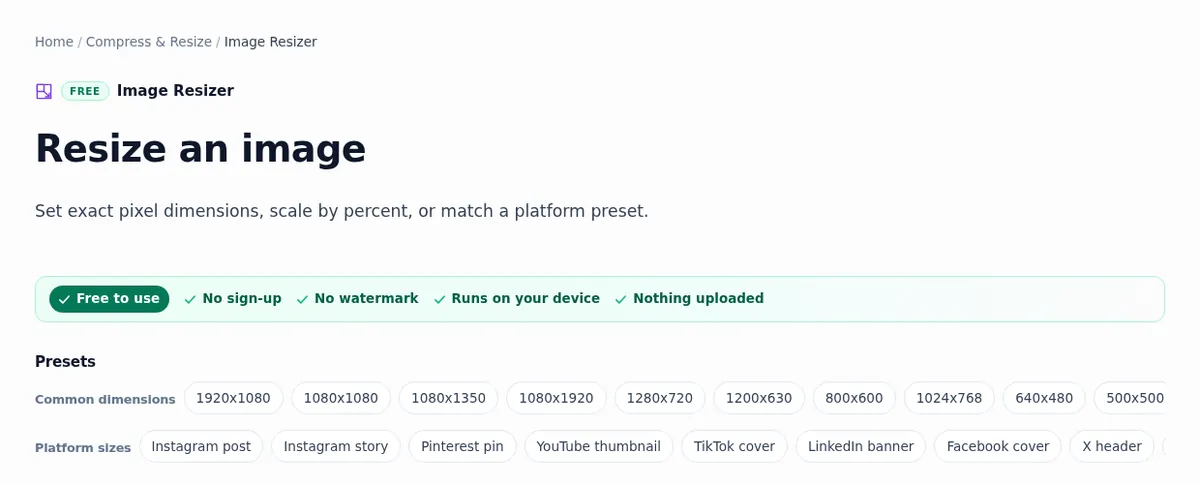
If the image is already 16:9, such as a screenshot of a 1080p video, the Image Resizer’s YouTube thumbnail preset sets 1280 × 720 directly. That preset starts with Keep aspect ratio unticked, so it forces both numbers: right for a 16:9 source, but a 4:3 photo would come out stretched. For the 1080p or 4K sizes, the 1920 × 1080 preset works the same way.
When the photo is not 16:9
A tall phone photo has a different shape from a thumbnail, and something has to give. The table shows the three honest options. Our aspect ratio guide explains why a ratio change always costs something.
| Option | What happens | Tool |
|---|---|---|
| Crop to 16:9 | The top and bottom of a tall photo are cut away. Nothing is distorted. | Image Cropper |
| Extend to 16:9 | New picture is painted at the sides by an AI model, so the whole photo stays. Works on sky, walls and floors; not on faces or text at the edge. | Uncrop / Expand |
| Pad to 16:9 | Plain colour is added at the sides. The whole photo stays, and the bars leave room for your title text. | Canvas Resizer |
After extending or padding, run the result through the cropper or resizer preset so it ends at exactly 1280 × 720. For the text itself, Add Text to Image has an outline and a drop shadow so a few large words stay readable on a busy frame, and the Background Remover cuts you or a product out to put on a bold colour.
Getting under the file size limit
The 2 MB mobile limit is the one people hit, usually with a PNG of a photo. Three fixes, in the order to try them:
- Save as JPG. A photo stored as PNG is usually much larger than the same picture as JPG.
- Use 1280 × 720. A 4K image has nine times the pixels of 720p, and the file grows with them.
- Compress to a target. The Image Compressor’s 2 MB preset lowers the JPG quality step by step until the file is under 2 MB, then stops.
Our guide to reducing image file size goes through why that order works.
Why YouTube refuses a thumbnail
- The account is not verified. YouTube Help says custom thumbnails need a verified account. Until then you can only choose one of the suggested stills.
- The daily limit. A channel can upload only so many custom thumbnails a day. The message is “Daily custom thumbnail limit reached”; YouTube says to try again in 24 hours.
- The file is too big for the device. 2 MB on mobile, 50 MB on desktop. A file that uploads from a computer can fail from the YouTube Studio app.
- The image is too small. Under 640 pixels wide is below the minimum.
When this does not apply
- Shorts. They take a 9:16 thumbnail (2160 × 3840 recommended), not 16:9. Crop with the 9:16 cropper instead.
- Channel art. The banner is a different size again (2560 × 1440, with only the middle strip shown on every device), and so is the channel icon. The social media image sizes guide lists both.
- Podcast playlists. YouTube asks for a 1:1 square there.
Every tool linked here runs in your browser on your own device. ImgVX AI is free with no sign-up, nothing is uploaded, and there is no watermark on the download. The short version: keep it 16:9, crop rather than stretch, and save a JPG under 2 MB if you upload from your phone.