
How to Extract Frames from a GIF: Free, No Upload
To extract frames from a GIF for free, open the GIF Frame Extractor, pick PNG, JPG or WebP, and drop in the GIF. Every frame comes out as a complete picture with its own download link, plus one ZIP of all of them numbered in order. It runs in your browser, so the GIF is never uploaded. Below are the results on four real test files, why some tools give you fragments instead of frames, and how to keep the timing.
The short answer
- Tool: GIF Frame Extractor. Free, no sign-up, no watermark; the file stays on your device.
- What you get: one image per frame, each rebuilt as the full picture, named
yourfile-001.png,yourfile-002.pngand so on, and a ZIP of all of them. - Format: PNG for transparent or flat-colour GIFs, JPG or WebP for photo GIFs (about a quarter of the PNG size in our test).
- Limits: up to 300 frames per file; the frame delays are not kept; needs Chrome, Edge, Opera or Firefox 133 or later.
- Not the right tool for a video file (convert it to a GIF first) or for an animation longer than 300 frames.
How do you extract frames from a GIF?
- Open the GIF Frame Extractor. It works the same on a computer and on an Android phone, in Chrome, Edge, Opera or Firefox.
- Choose the format under “Save frames as”: PNG, JPG or WebP. PNG is the default and the safe choice; see which format to pick.
- Drop in the GIF, or click to choose it. Animated WebP and AVIF files work too. The frames are decoded one by one, and a counter shows the progress.
- Download. “Download all as ZIP” saves every frame in one file, numbered
-001,-002and onward so they sort in the right order. To keep only some frames, use the download link under each one instead.
The tool reports how many frames it found and the size of each in pixels. Your original GIF is not changed.
What happened when we extracted frames from four real files?
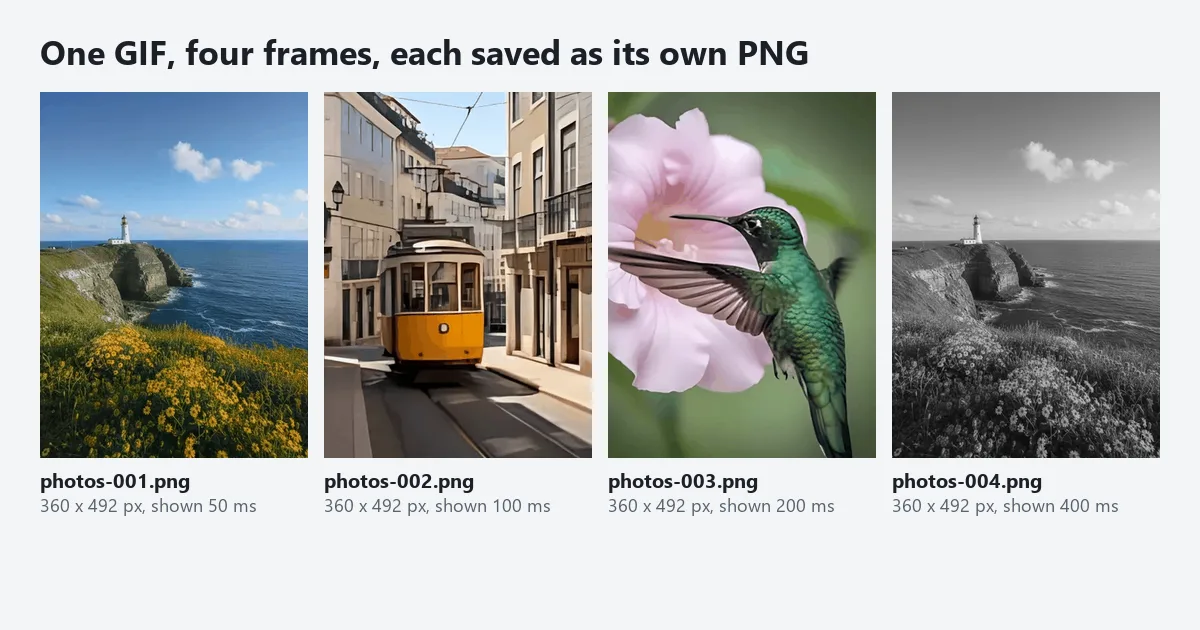
We ran the tool on 15 November 2026 in Microsoft Edge 157 on a Windows PC. The test files were made for this article from the photos on our own home page and a simple drawing, so we knew exactly what was inside each one: the number of frames, the delays and how each frame was stored.
| File | What is inside | Result | Time | ZIP size |
|---|---|---|---|---|
| Photo slideshow GIF, 396 KB | 4 photos, 360 × 492 px, shown for 50, 100, 200 and 400 ms | 4 frames, 360 × 492 px each | Under half a second | 770.9 KB as PNG |
| Sprite GIF, 5.7 KB | A red ball moving across a transparent 480 × 160 canvas, 8 frames; frames 2 to 8 stored as small patches | 8 full frames, 480 × 160 px, background still transparent | About half a second | 26.0 KB as PNG |
| Counter GIF, 91 KB | 320 numbered frames, 96 × 64 px | 300 frames and the note “This animation has 320 frames; the first 300 are shown.” | 5.4 seconds | 275.2 KB, 300 files |
| Animated WebP, 3.1 KB | The same 8-frame sprite saved as WebP | 8 full frames, identical to the GIF’s | About half a second | 26.0 KB as PNG |
Three things stand out. Extraction is fast for ordinary GIFs; even 300 frames took seconds, not minutes, though a phone or a large GIF will be slower. Frames stored as patches came back as whole pictures (the next section explains why that matters). And the PNG frames of a photo GIF add up to almost twice the size of the GIF itself, because PNG stores every pixel separately while the GIF shared one palette across the animation.
Why do some GIF frames come out as only part of the picture?
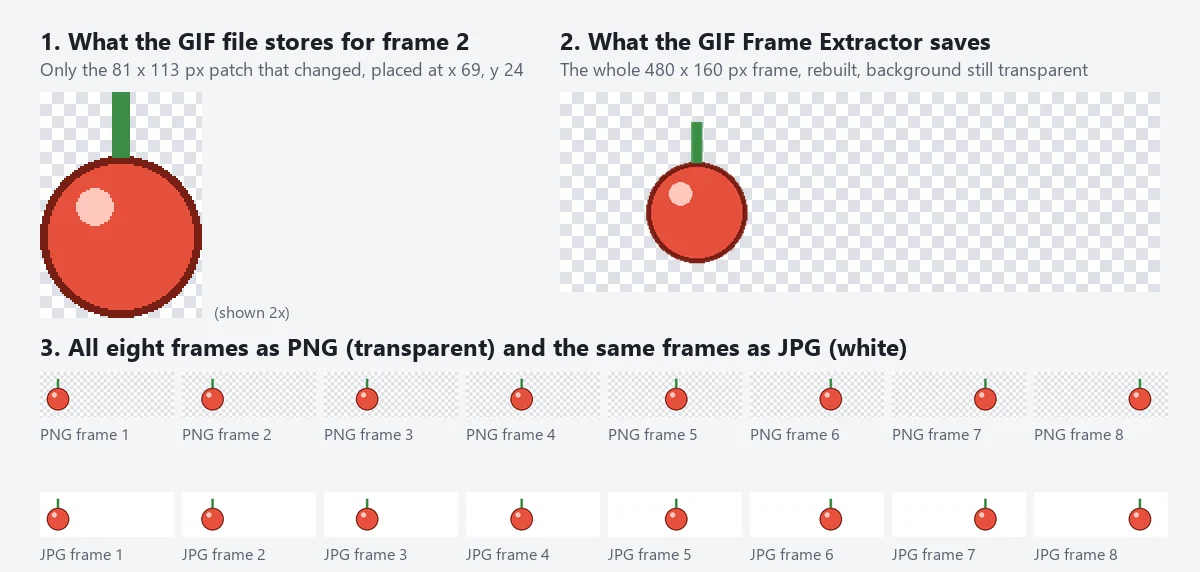
A GIF does not have to store every frame in full. The GIF89a specification lets each frame be a rectangle of any size placed anywhere on the canvas, with a rule for what happens to it before the next frame is drawn, called the disposal method (GIF89a specification, section 23):
| Disposal method | What the player does before the next frame | What a raw frame looks like |
|---|---|---|
| 0, not specified | Nothing in particular | Often a full frame, sometimes a patch |
| 1, do not dispose | Leaves the frame in place; the next one is drawn on top | Only the changed part, such as a moving mouth on a still face |
| 2, restore to background | Clears the frame’s area to the background | Only the moving object, as in our sprite test |
| 3, restore to previous | Puts back what was there before the frame | A temporary overlay |
In our sprite GIF, the file stores frame 2 as an 81 × 113 pixel patch placed 69 pixels from the left and 24 from the top. Saved raw, frame 2 would be that small square on its own. The GIF Frame Extractor uses the browser’s own image decoder, which plays the frames forward and applies each disposal rule, so each saved file is the full 480 × 160 picture exactly as it appears in the animation at that moment. ImageMagick calls this step coalescing, and its documentation describes the -coalesce option as defining the full look of each frame. If another tool gives you a folder of odd-sized fragments, this is why.
Should you save GIF frames as PNG, JPG or WebP?
We extracted the same two GIFs in all three formats. The tool saves JPG and WebP at quality 92, which is high enough that the difference is hard to see at normal size.
| Format | 4 photo frames | 8 sprite frames | Transparency | Best for |
|---|---|---|---|---|
| PNG | 770.9 KB | 26.0 KB | Kept | Stickers, logos, pixel art, anything you will edit and rebuild |
| JPG | 202.3 KB | 35.6 KB | Filled with white | Photo frames you want to post, print or send |
| WebP | 148.2 KB | 20.2 KB | Kept | The smallest files when the place you upload to accepts WebP |
PNG is the default for a reason: it keeps every pixel of the frame, and a GIF never has more than 256 colours per frame, so nothing is lost. JPG was the largest choice for the flat-colour sprite and the smallest widely accepted one for photos. If a site will not take WebP, convert later with the Image Converter, and if the JPG frames are still too big to send, the Image Compressor takes the whole set at once. The image formats guide explains the trade-offs in more depth.
How do you keep each frame’s timing?
A GIF stores a separate delay for every frame, in hundredths of a second, so one frame can stay on screen for two seconds while the next flashes for a twentieth of one. Our slideshow GIF had four different delays. Once you extract the frames, they are ordinary still images and that timing is gone: the GIF Frame Extractor does not list the delays, and no PNG or JPG file can carry them.
If the timing matters, read it before you split the file:
- ImageMagick:
magick identify -format "%s %T\n" animation.gifprints each frame number and its delay. In ImageMagick’s format escapes, %T is the time delay in hundredths of a second, so 10 means 100 ms. - Or simply count: if the animation looks evenly paced, divide its length in seconds by the number of frames the tool found.
When you rebuild the animation in the GIF Maker, you set one delay for every frame (400 ms by default; 100 ms is ten frames a second). To hold one frame longer than the others, add that frame twice or three times in a row before you build.
What can you do with the extracted frames?
- Edit and rebuild. Fix a typo in a caption, crop the frames, remove one that flickers, then put them back together in the GIF Maker. Keep the file names: they sort in the original order.
- Make a sprite sheet for a game or web animation. Drop all the PNG frames into the Sprite Sheet Generator to pack them into one image with a JSON atlas. The sprite sheets guide covers cell sizes and padding.
- Pick a still for a thumbnail or a post. Choose the sharpest frame instead of the first one, which is often blank or mid-fade.
- Lay out a strip or a grid. Put chosen frames side by side with Combine Images, for a step-by-step how-to or a comic panel.
- Make it bigger. GIFs are often small; enlarge a chosen frame with the Image Upscaler before printing or posting it.
Extracting frames from an animation someone else made does not give you the right to reuse them. Reaction GIFs and stickers usually come from films, shows or artists; use frames from your own GIFs, or from ones whose licence allows it.
Which browsers can extract GIF frames?
The GIF Frame Extractor uses the browser’s built-in WebCodecs image decoder rather than shipping a decoder of its own. According to MDN’s ImageDecoder reference and its compatibility data, Chrome has had it since version 94, and Edge and Opera follow Chrome. Firefox added it in version 133, released on 26 November 2024 (Firefox 133 release notes). Safari lists it from version 27.3, which is still a beta on 15 November 2026, so released Safari on a Mac, iPhone or iPad cannot use the tool yet.
In a browser without the decoder, the tool says so plainly: “This browser cannot take a GIF apart.” It does not quietly hand you the first frame and pretend that was all of them. On an iPhone, install Chrome, Edge or Firefox; note that on iOS these browsers use Apple’s engine, so they may not have the decoder either until Safari does. A computer is the reliable route.
Should you use a browser tool, an upload site or a desktop command?
| Option | Where the file goes | What you get | Watch out for |
|---|---|---|---|
| ImgVX GIF Frame Extractor | Stays in your browser | Full frames as PNG, JPG or WebP, one ZIP | 300 frames per file; no delays listed; not in released Safari |
| Ezgif splitter | Uploaded by default; its page says files are deleted 1 hour after upload, and it offers a local processing option | Frames in several formats, ZIP download, a 200 MB file limit | Check which mode you are in before splitting a private GIF |
| Online GIF Tools frame extractor | In the browser | Chosen frames laid out as one PNG strip or grid | One image, not separate files |
| ImageMagick | Your computer | magick animation.gif -coalesce frame_%03d.png writes every full frame; no frame limit | Install and command line; leave out -coalesce and you get fragments |
| FFmpeg | Your computer | ffmpeg -i animation.gif -fps_mode passthrough frame_%04d.png writes one image per stored frame | Command line; best for very long GIFs and video files |
For the usual job, a few dozen frames from a GIF on your own computer, the browser tool is the quickest and the most private. For thousands of frames, a batch of GIFs or a script, use ImageMagick or FFmpeg. In FFmpeg’s documentation, passthrough mode passes each frame through with its own timestamp, so frames are not dropped or duplicated to fit a fixed frame rate.
Troubleshooting
| What you see | Cause | Fix |
|---|---|---|
| “This browser cannot take a GIF apart.” | The browser has no WebCodecs image decoder (released Safari, older Firefox) | Use Chrome, Edge, Opera or Firefox 133 or later on a computer |
| Only 1 frame from an animated GIF | The file is a still GIF, or you tried before 15 November 2026, when a bug made current Chrome and Edge read every file as one frame | Reload the page and try again; if it is still one frame, the GIF has only one |
| “The first 300 are shown” | The tool stops at 300 frames per file | Use ImageMagick or FFmpeg for the full set |
| Transparent areas turned white | JPG has no transparency | Choose PNG or WebP |
| The frames are fragments when opened elsewhere | That tool saved raw frames, not coalesced ones | Extract here, or add -coalesce in ImageMagick |
| The rebuilt GIF plays at the wrong speed | Frame delays are not kept in still images | Read them first with ImageMagick and repeat frames to hold them longer |
| Colours look banded | A GIF frame has at most 256 colours; extraction cannot add back what the GIF dropped | Find the original video or photos if you have them |
| A video file does not open | The tool reads animated images, not MP4 or MOV | Convert the clip to a GIF first, or use FFmpeg on the video |
More ways to change one format into another, including a single still from a GIF, are in how to convert images for free, and the free AI image editing guide lists the other tools that run on your device the same way.
Questions
How do I extract all the frames from a GIF for free?
Open the free GIF Frame Extractor, choose PNG, JPG or WebP under Save frames as, and drop in the GIF. Every frame appears as its own image with a download link, and "Download all as ZIP" saves them together, numbered in order. The GIF is read in your browser and never uploaded.
Why are some frames from my GIF only a small piece of the picture?
Many GIFs store only the part of each frame that changed since the last one, to save space. A tool that saves the raw frames gives you those fragments. The GIF Frame Extractor rebuilds every frame as the full picture, the same thing ImageMagick does with its -coalesce option, so each file looks exactly like the animation at that moment.
Should I save GIF frames as PNG or JPG?
Use PNG when the GIF has a transparent background or flat colours, such as a sticker, logo or pixel art: PNG keeps every pixel and the transparency. Use JPG or WebP for photographic frames: in our test, four photo frames took 770.9 KB as PNG, 202.3 KB as JPG and 148.2 KB as WebP. JPG fills transparent areas with white.
How do I get just one frame from a GIF?
Extract the frames and download only the one you want; each frame has its own download link. If you only need the first frame, the GIF to PNG preset of the Image Converter saves it in one step.
Does extracting frames keep the timing of the GIF?
No. The frames are still images, so the delay of each frame is not stored in them. GIF delays are set in hundredths of a second per frame; if you need them, read them before you split the file, for example with the ImageMagick command magick identify -format "%s %T\n" file.gif, which prints each frame number and its delay in hundredths of a second.
Why does the tool say this browser cannot take a GIF apart?
The GIF Frame Extractor uses the WebCodecs image decoder built into the browser. Chrome, Edge, Opera and Firefox 133 or later have it; Safari does not yet in its released versions. Open the page in one of those browsers, or use a desktop command such as ImageMagick if you have to stay in Safari.
Can I extract frames from an animated WebP or AVIF?
Yes. The same tool reads animated WebP and AVIF files as well as GIF, in browsers whose image decoder supports the format. In our test an eight-frame animated WebP came out as eight full frames, the same as the GIF version of the animation.