
How to Make a Sprite Sheet From Images (Free, JSON Atlas)
To make a sprite sheet from images, put the frames in order, open the free Sprite Sheet Generator, select all of them at once, choose the columns, padding and frame size, and download two files: a PNG with every frame in a grid and a JSON atlas that records where each frame sits. It runs in your browser, the images are not uploaded, and eight 64 x 64 pixel frames became a 196 x 196 pixel sheet in our test.
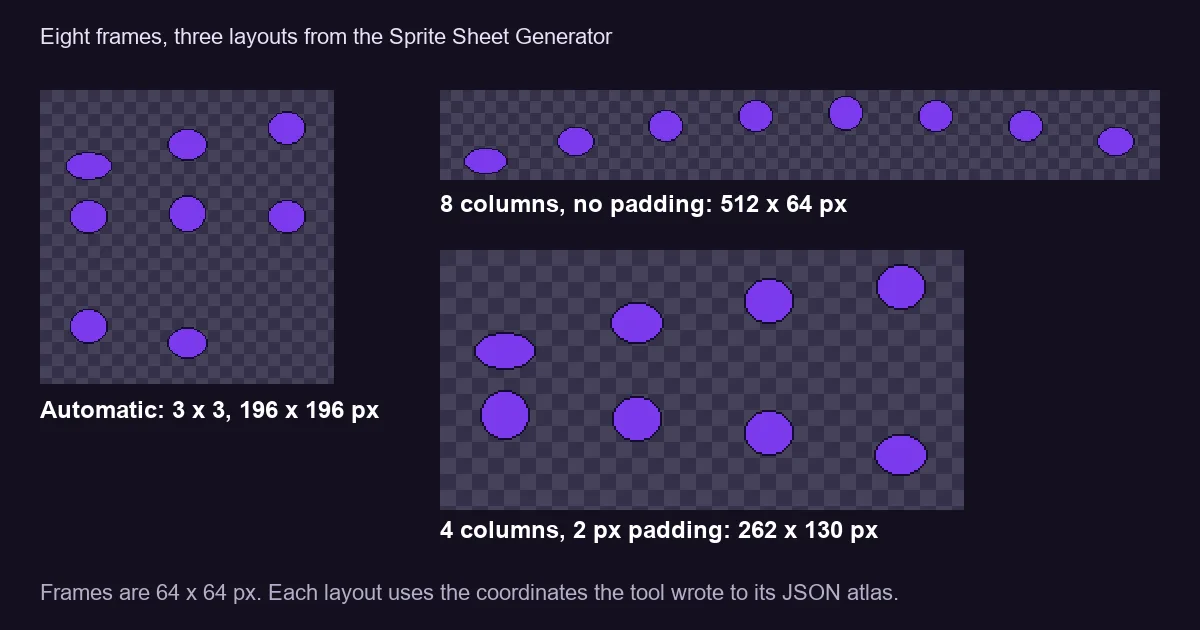
Key points
- Select all frames in one go. The tool needs two or more files at once and keeps the order you chose.
- Columns on automatic make a square-ish grid. Eight frames give a 3 x 3 grid with one empty cell. Set columns yourself for a strip.
- Padding defaults to 2 pixels between cells, from 0 to 32.
- Two downloads: the PNG sheet and a JSON atlas in the TexturePacker “hash” layout, which Phaser can load directly.
- Limits: up to 400 frames, and a sheet no bigger than 16,384 pixels on a side. No trimming and no rotation.
What is a sprite sheet, and when do you need one?
A sprite sheet is one image that holds many smaller images, usually the frames of an animation laid out in a grid. A game loads one file instead of dozens, and draws a frame by cutting out its rectangle. Web animations and UI icon sets use the same idea.
A texture atlas is a sprite sheet plus a data file. The data file lists each frame by name with its position and size, so the code can ask for “ball-03.png” instead of “cell number 2”. The Sprite Sheet Generator makes both. For the wider background, including seamless textures, see the guide to sprite sheets and seamless textures.
You do not need a sheet for a single image, or for a short animation that you will show as a GIF. If your frames start out as a GIF, pull them apart first with the GIF Frame Extractor (see how to extract frames from a GIF), then pack the ones you want.
How should you prepare the frames?
- Name them with zero-padded numbers. ball-01.png to ball-08.png sorts correctly; ball-1 to ball-10 can put 10 before 2 in a file picker.
- Make every frame the same size for an animation, with the subject in the same place in each, or the animation will jitter.
- Use transparent PNGs. If your art sits on a solid colour, clear it first with Make Background Transparent, and trim loose edges with the Image Cropper.
- Resize before packing, not after. Scale all frames to the final size with the Image Resizer, or pick a fixed frame size in the tool.
- Keep the originals. The sheet is the thing you ship; the separate frames are what you edit.
How do you make the sprite sheet, step by step?
- Open the Sprite Sheet Generator.
- Select every frame in one go. Hold Ctrl or Cmd in the file picker, or drop them all together. The tool says “Pick two or more frames at once” if you give it one.
- Set Columns. 0 means automatic.
- Set Padding between frames. The default is 2 pixels.
- Set Frame size. Largest frame keeps every frame at its own size; 32, 64, 128 or 256 forces a square cell and scales each frame to fit it.
- Set Scaling. Smooth for painted art and photos; Pixel art for sprites that must keep hard edges.
- Download the PNG and the JSON. Keep them in one folder with the names they download as. The JSON names the PNG inside it, and both are named after your first file, for example ball-01-spritesheet.png and ball-01-spritesheet.json.
What do the settings do? A tested example
We drew eight 64 x 64 pixel frames of a purple ball squashing and bouncing on a transparent background, and ran them through the tool with different settings. The table lists what the tool reported.
| Setting | Sheet size | File size | Layout |
|---|---|---|---|
| Defaults (columns 0, padding 2, largest frame) | 196 x 196 | 3.1 KB | 3 x 3 grid, 8 of 9 cells used |
| 8 columns, padding 0 | 512 x 64 | 2.6 KB | One row |
| 4 columns, padding 2 | 262 x 130 | 2.8 KB | Two rows of four |
| Frame size 32 x 32 (columns 0, padding 2) | 100 x 100 | 1.7 KB | 3 x 3 grid, each frame halved |
The sizes follow a simple rule: width is the columns times the cell width plus the padding between cells, and the same for height. For the default run that is 3 x 64 + 2 x 2 = 196. Padding is added between cells only, not around the outside.
Which layout should you choose? A single row is easiest to slice by hand and suits one animation. A grid keeps the sheet compact when you have many frames. Padding of 2 pixels costs almost nothing here: the default sheet is 3.1 KB against 2.6 KB for the packed row.
What is inside the JSON atlas?
The JSON lists each frame under its file name. For our default run, ball-02.png reads frame: { x: 66, y: 0, w: 64, h: 64 }: 64 pixels for the first cell plus 2 for the gap puts the second cell at x 66. ball-04.png starts the second row at y 66, and ball-08.png sits at x 66, y 132. A meta block names the image (ball-01-spritesheet.png), the format (RGBA8888) and the sheet size (196 x 196).
Every frame is marked rotated: false and trimmed: false. The generator never rotates or trims, so the data stays easy to read, but a sheet of mostly empty frames is larger than a trimmed one would be.
What happens if the frames are different sizes?
Every cell takes the size of the largest frame, and smaller frames are centred in their cell. We tried three frames of 64 x 64, 48 x 80 and 80 x 40 pixels. The sheet was 162 x 162 pixels with three 80 x 80 cells, and the atlas recorded where each picture sits inside its cell: the 48 x 80 frame at x 16, y 0, and the 80 x 40 frame at x 0, y 20.
That keeps every frame the same cell size, which is what a sprite animation wants. It also wastes space when one frame is much larger than the rest. If that matters, choose a fixed Frame size instead: each frame is scaled to fit inside the square cell and centred. A fixed size also turns on the Scaling choice. With Largest frame nothing is scaled, so Smooth versus Pixel art makes no difference.
How do you use the sheet in Phaser, Godot and other engines?
Keep the PNG and the JSON together. The tool's note under the result gives the Phaser call for your file names.
- Phaser. The Phaser loader documentation says the atlas data can be in the JSON Hash or JSON Array format. This tool writes the hash form, so
this.load.atlas('ball', 'ball-01-spritesheet.png', 'ball-01-spritesheet.json')loads it, andthis.add.image(x, y, 'ball', 'ball-03.png')shows one frame by name. For an animation, Phaser's generateFrameNames builds the frame list from a prefix, a start and end number and a zero padding. Our frame names end in .png, so check that page for how to include the ending. - Phaser, without the JSON. The documentation says a plain
load.spritesheetcall needs, at a minimum, aframeWidthin its frame configuration, so a grid of equal cells works from the PNG alone. Account for the padding if you use it. - Godot. The Godot sprite animation tutorial uses an AnimatedSprite2D with a SpriteFrames resource: choose “Add frames from a Sprite Sheet”, pick the PNG, set how many images run horizontally and vertically, select the frames and add them. Those steps work from the grid counts rather than a data file, and the tool's result line tells you the grid.
- Unity, GameMaker and others. The note under the result gives the cell size and spacing to type into their slicing tools. We did not test those editors, so check each engine's own documentation.
Why does my sprite sheet look wrong?
| What you see | Likely cause | Fix |
|---|---|---|
| “Pick two or more frames at once” | Only one file was selected, or files were added one by one | Select all frames together with Ctrl or Cmd, or drop them all at once |
| Frames are in the wrong order | The order follows the order the picker returned | Name them frame-01, frame-02 and so on, and select them as a group |
| An empty cell at the end | Automatic columns make a square grid | Set the columns, for example 4 for eight frames, or accept the gap |
| A thin line of the next frame shows at an edge | No padding, with scaling or filtering in the engine | Use 2 pixels of padding or more |
| Pixel art looks blurry | Smooth scaling with a fixed frame size | Set Scaling to Pixel art, and use whole-number size changes |
| The animation jumps | Frames differ in size or the subject moves inside the frame | Redraw or crop all frames to one size with the subject anchored the same way |
| A warning that the sheet is more than a browser can hold | Over 16,384 pixels on a side, or over 64 million pixels in all | Pick a smaller frame size, fewer frames, or split into two sheets |
| The sheet has a solid background | The source frames were not transparent | Remove the background first, then save the frames as PNG |
When is this not the right tool?
Use a dedicated packer such as TexturePacker when you have hundreds of sprites of different sizes and need them trimmed and rotated to save memory, or when you need several atlases and engine-specific formats. The Sprite Sheet Generator is for the common smaller job: one animation or one set of icons, in a grid, without installing anything.
For related jobs, Image to Pixel Art turns a photo into retro art you can animate, the Pixel Art Scaler enlarges it in whole steps, and the GIF Maker goes the other way, from frames to an animated image. The pixel art guide covers the art side.
Questions
How do I make a sprite sheet from separate images?
Name the frames in order (frame-01, frame-02 and so on), open the Sprite Sheet Generator, select all the frames at once, set the columns, padding and frame size, then download the PNG sheet and the JSON atlas. Everything runs in your browser.
What is the difference between a sprite sheet and a texture atlas?
A sprite sheet is a grid of equal cells, usually one animation, and the engine needs only the cell size. A texture atlas adds a data file that lists each frame by name and rectangle, so frames can be looked up by name. The Sprite Sheet Generator gives you both: the PNG grid and a JSON atlas.
How much padding should a sprite sheet have?
The tool defaults to 2 pixels between cells and allows 0 to 32. Use 0 only when your engine slices by an exact cell size and you do not scale the sprites. A small gap such as 2 pixels keeps a neighbouring frame from showing at an edge if the engine scales or filters the sheet. More help: ImgVX AI help docs.
Why is my sprite sheet bigger than the number of frames needs?
With columns on automatic the tool builds the smallest square grid that fits, which is the square root of the frame count rounded up. Eight frames make a 3 by 3 grid with one empty cell. Set the columns yourself, for example 8 for a single row or 4 for two rows, to get exactly the layout you want. Browse: all free image tools.
Can I mix frames of different sizes?
Yes, but every cell takes the size of the largest frame, and smaller frames are centred in their cell. In our test, frames of 64 x 64, 48 x 80 and 80 x 40 pixels all got an 80 x 80 cell. For an animation, keep every frame the same size so the character does not jump. More help: ImgVX AI help docs.
Is there a limit to the number of frames or the sheet size?
The tool takes up to 400 frames at a time. It refuses a sheet larger than 16,384 pixels on either side or 64 million pixels in total, and tells you to choose a smaller frame size or fewer frames. More help: ImgVX AI help docs.
Does the generator trim transparent space or rotate frames?
No. Frames keep their full size, and the atlas states that no frame is rotated or trimmed. If you need those space-saving features across hundreds of mixed-size sprites, a dedicated packer such as TexturePacker does more. More help: ImgVX AI help docs.
Are my images uploaded anywhere?
No. The sheet is drawn on a canvas inside your browser tab, so game art that is not public yet stays on your device. The tool is free, with no account, watermark or daily limit.
Sources: tool behaviour read from the Sprite Sheet Generator and run on 25 November 2026; Phaser documentation (loader plugin and animation manager) and the Godot sprite animation tutorial opened the same day.