
Image Metadata Editor: How to Edit EXIF Data Free
To edit image metadata, open the free Metadata Editor, drop in a JPEG, type the camera make and model, artist, copyright, description and date, and download the copy. The picture is not re-compressed and nothing is uploaded. Every field you leave empty, and all other metadata such as GPS and exposure, is removed from that copy. That last point is the one to understand before you use it, so this article shows exactly what is in the file before and after.
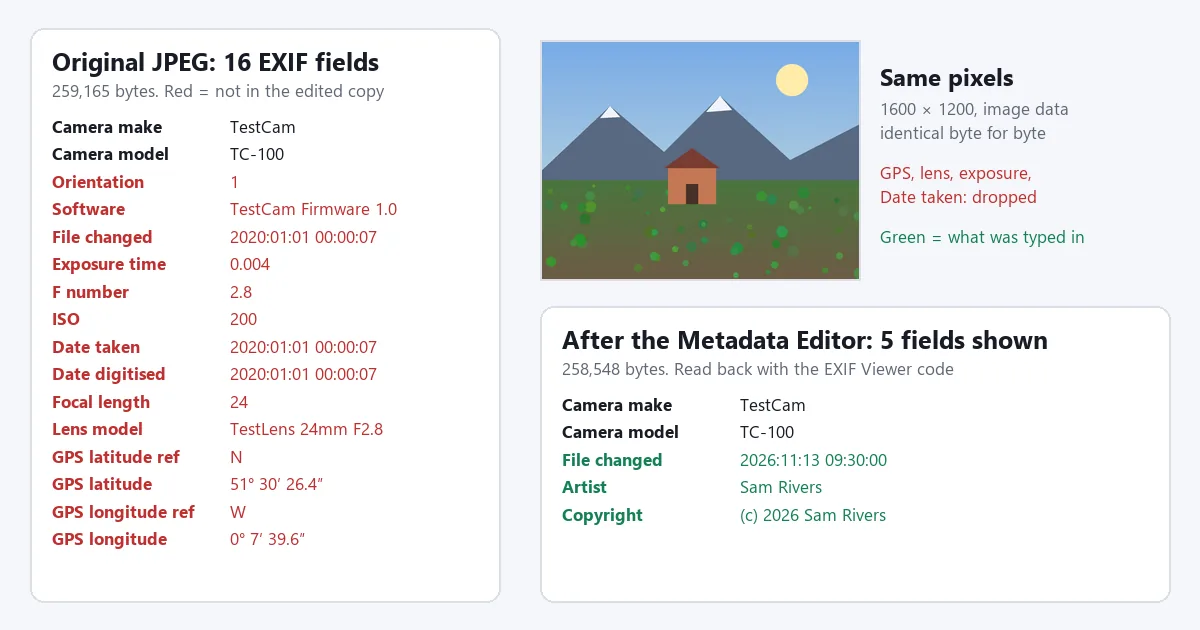
The short answer
- Tool: Metadata Editor. JPEG only, six text fields, free, no sign-up, the photo stays in your browser.
- It rebuilds, it does not patch. The copy carries only the fields you fill in. On our test, 16 EXIF fields went in and the 6 typed fields came out; GPS, lens, exposure and the original Date taken were gone.
- Quality: unchanged. The image data was identical byte for byte, and the file went from 259,165 to 258,548 bytes.
- Watch for: phone photos that rely on the Orientation tag show on their side afterwards. Fix below.
- Not the right tool for changing one field and keeping the rest, for PNG, WebP or HEIC, or for many files at once. Use ExifTool for those.
What is image metadata, and where does it live in the file?
Image metadata is text stored inside a picture file next to the picture itself: which camera took it, when, with what settings, where, and who owns it. A JPEG can hold three kinds, each in its own block ahead of the image data:
| Kind | Written by | Typical contents | What the Metadata Editor does with it |
|---|---|---|---|
| EXIF | The camera or phone | Make, model, date and time, exposure, lens, Orientation, GPS position, artist, copyright | Replaces the whole block with the fields you fill in |
| XMP | Editing and library software | Ratings, keywords, edit history, copies of EXIF fields | Removes it |
| IPTC | News and stock photo software | Caption, headline, credit, keywords | Leaves it as it is |
That last column is measured, not assumed. Our test JPEG carried a 464-byte EXIF block, a 351-byte XMP packet and a 52-byte IPTC caption. After editing, the file held a new 198-byte EXIF block and the same 52-byte IPTC caption; the XMP packet was gone.
The file name, the file size and the “modified” date your computer shows are not metadata inside the picture. They belong to the file system and change when you copy or save the file. To see what a photo carries before you change anything, open it in the EXIF Viewer; the guide to what your photos reveal explains why the GPS field matters most.
How do you edit image metadata online?
- Open the Metadata Editor and drop in a JPEG. The file is read by your browser and is not uploaded. A PNG, WebP or HEIC file gives the message “Only JPEG files carry editable EXIF”; convert it first (see troubleshooting).
- Fill in every field you want the copy to carry. Camera make, Camera model, Artist, Copyright, Description and Date taken. Artist and Copyright are filled in for you when the photo already has them; type the others yourself, including the camera make and model if you want to keep them. An empty field is not written.
- Type the date in the EXIF pattern:
2026:11:13 09:30:00, which is year, month, day with colons, a space, then 24-hour time. The tool writes what you type and does not check it. - Download the copy, then check it. Open the download in the EXIF Viewer and look at it in your usual photo app to confirm it is the right way up.
Your original file is not changed. The download is a new file, so keep the original somewhere safe: it is the only copy with the full camera data.
Which fields can you edit, and what should you type?
The six boxes map to six standard EXIF tags. The tag names below are the ones used in the ExifTool EXIF tag table, the reference most metadata software follows.
| Box in the editor | EXIF tag | Example | Note |
|---|---|---|---|
| Camera make | Make (0x010F) | Canon | Starts empty; retype it to keep it |
| Camera model | Model (0x0110) | EOS R6 | Starts empty; retype it to keep it |
| Artist | Artist (0x013B) | Sam Rivers | The photographer’s name |
| Copyright | Copyright (0x8298) | (c) 2026 Sam Rivers | Use plain letters, see below |
| Description | ImageDescription (0x010E) | Cabin below the ridge at sunrise | Written to the file; our EXIF Viewer does not list this tag |
| Date taken | DateTime (0x0132), which ExifTool calls ModifyDate | 2026:11:13 09:30:00 | Not the DateTimeOriginal tag, see the date section |
Use plain letters and digits. EXIF text fields were designed for basic Latin characters. We typed “© 2026 Zoë Müller” into Copyright as a test: one reader showed it correctly, and our own EXIF Viewer showed “© 2026 Zoë Müller”. Writing “(c)” or the word “Copyright”, and names without accents, reads the same everywhere.
The date pattern matters. The ExifTool FAQ states it plainly: “The standard EXIF date/time format is "YYYY:mm:dd HH:MM:SS"”. We typed “13 November 2026” as a test and it was written exactly like that, which most software will not read as a date.
What does the edited file contain?
We made a 1600 × 1200 test JPEG with the kind of metadata a camera writes: 16 EXIF fields including a GPS position, plus an XMP rating and an IPTC caption. We ran it through the Metadata Editor with all six boxes filled in, then read the result back with two different readers.
| In the file | Original | Edited copy |
|---|---|---|
| Camera make and model | TestCam, TC-100 | TestCam, TC-100 (retyped) |
| Artist, Copyright, Description | None | Written as typed |
| DateTime (“File changed”) | 2020:01:01 00:00:07 | 2026:11:13 09:30:00 |
| Date taken and Date digitised | 2020:01:01 00:00:07 | Gone |
| Exposure time, F number, ISO, focal length, lens model | Present | Gone |
| GPS latitude and longitude | Present | Gone |
| Orientation, Software | Present | Gone |
| XMP packet (rating) | 351 bytes | Gone |
| IPTC caption | 52 bytes | Still there, unchanged |
| Image data | 257,689 bytes | 257,689 bytes, identical |
| Whole file | 259,165 bytes | 258,548 bytes |
Three things follow from this table.
- There is no quality loss. The compressed picture is copied through untouched; a pixel-by-pixel comparison of the two files found no difference. Editors that open the picture and save it again cannot promise that.
- It is also a privacy clean-up. The GPS position and the lens and exposure details never reach the copy. If that is all you want, the Metadata Remover does it in one step: on the same file it removed 867 bytes of metadata and left 258,298 bytes. It removes the Orientation tag as well, so the note on sideways photos below applies to it too.
- What you do not type is lost in the copy. When we filled in only Artist and Copyright, the copy held exactly those 2 fields and the camera make and model were gone. With every box empty, the copy held an empty EXIF block.
The IPTC caption staying put is worth knowing if the photo came from an agency or a stock library: an old caption or credit can still show in software that reads IPTC, even though you wrote a new Description. The Metadata Remover clears that block too.
Why can a photo turn sideways after editing?
Many phones and cameras do not turn the pixels when you hold the device upright. They store the picture as the sensor saw it and add an Orientation tag that tells apps how to turn it for display. That tag is one of the fields that is not carried over.
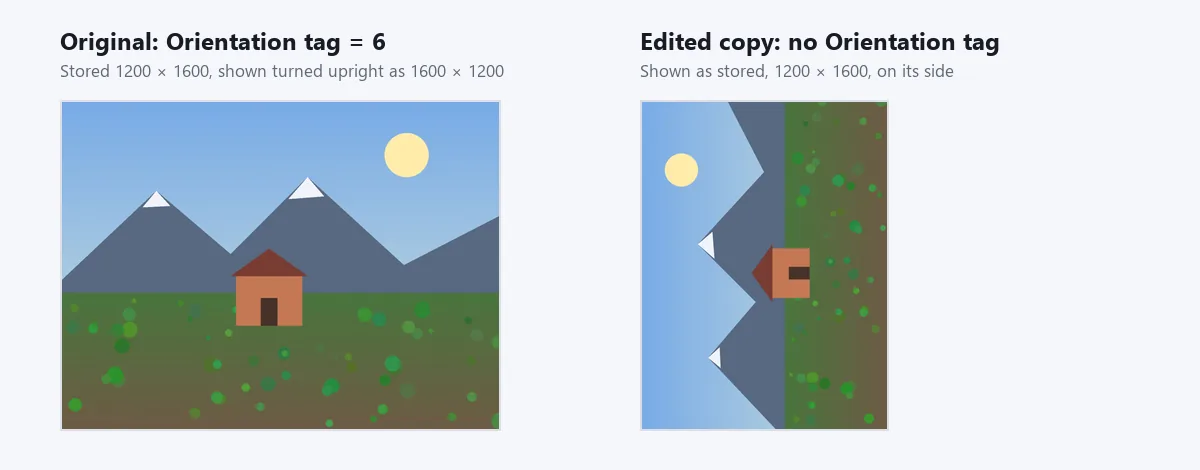
Our second test file was stored 1200 × 1600 with Orientation 6, so every app showed it upright as 1600 × 1200. The edited copy had no Orientation tag and showed as stored, on its side. Nothing is damaged; the instruction is simply missing.
To avoid it, bake the turn into the pixels before you edit the metadata:
- Open the original in the Image Converter and save it as JPG. The converter draws the picture the right way up and saves that, so the result no longer needs the tag. This step re-compresses the picture once, so choose a high quality.
- Open that JPG in the Metadata Editor and add your fields.
If you already have a sideways copy, Rotate & Flip turns it back by a quarter turn; add the metadata after rotating, not before, because rotating saves a new picture without it. Photos with Orientation 1, which includes most pictures that have already been edited or exported, are not affected. How to straighten a photo covers pictures that are tilted by a few degrees rather than a quarter turn.
Can you change the date a photo was taken?
EXIF has three date tags, and software does not agree on which one to show:
| EXIF tag | ExifTool name | Meaning | After the Metadata Editor |
|---|---|---|---|
| DateTimeOriginal (0x9003) | DateTimeOriginal | When the picture was taken | Not in the copy |
| DateTimeDigitized (0x9004) | CreateDate | When it was digitised; the same moment for a digital camera | Not in the copy |
| DateTime (0x0132) | ModifyDate | When the file was last changed | Set to what you typed |
So the editor’s date box sets the third tag and the copy no longer has the first two. An app that reads the capture date from DateTimeOriginal will not find one in the copy; whether it falls back to DateTime, or to the file’s own date, depends on the app. Our EXIF Viewer lists the new value as “File changed”, not “Date taken”.
That makes the Metadata Editor a fair choice for stamping a date on a file that has none, such as a scan, and a poor one for correcting a camera clock in a photo library. For that job use one of these:
- ExifTool (free, Windows, macOS and Linux, from exiftool.org). Its
AllDatesshortcut covers DateTimeOriginal, CreateDate and ModifyDate together, and every other field is kept. For example,exiftool "-AllDates=2026:11:13 09:30:00" photo.jpgsets all three, andexiftool "-AllDates+=1" photo.jpgmoves them one hour later, which is the usual fix after a trip across a time zone. - Photos on a Mac. Apple’s Photos User Guide gives the steps: select the photos, choose Image > Adjust Date and Time, enter the new value and click Adjust.
- Google Photos. Its help page describes an Edit date & time option, and warns that the change shows inside Google Photos while a downloaded or shared copy may still show the camera’s original date.
Which tool should you use for which job?
| Job | Best tool | Why |
|---|---|---|
| Put your name, a copyright line and a description on a JPEG before sending it | Metadata Editor | Quick, no install, and the GPS position is dropped in the same step |
| Send a photo with no metadata at all | Metadata Remover | Removes EXIF, XMP and IPTC without re-compressing; works on PNG too |
| See what a photo carries | EXIF Viewer | Read only; flags a GPS position |
| Change one field and keep all the others | ExifTool | It edits a field in place; our editor rebuilds the block |
| Correct the capture date in a photo library | ExifTool, or the date adjustment in your photo app | They write the capture-date tags |
| Edit GPS position, exposure or lens fields | ExifTool | Our editor has six text fields only |
| PNG, WebP, HEIC, TIFF or RAW files | ExifTool, or convert to JPG first | Our editor writes JPEG only |
| Hundreds of files at once | ExifTool | One command handles a folder |
| Ownership that survives a social media upload | Watermark Tool | Sites often remove metadata; a visible mark stays in the picture |
ExifTool is a command-line program, which puts some people off, but for anything beyond the six fields it is the honest recommendation: it is free and it reads and writes EXIF, GPS, IPTC and XMP.
Does edited metadata prove anything?
No, and it is worth being clear about this in both directions. The fields are plain text. This article changed a 2020 date to a 2026 one in a few seconds, and anyone can do the same to a camera model or a name. A date or an author inside a file is a claim by whoever last saved it, not evidence.
For the same reason, an Artist and Copyright field is a label rather than protection. It helps honest people find out whose photo it is, and it is lost the moment a site strips metadata on upload, which many social networks do. If the name must stay with the picture, add a visible mark as well; how to add a watermark to a photo has settings that are hard to crop out. For selling online, photos that sell on Vinted, eBay and Facebook Marketplace covers what to remove from a listing photo first.
Troubleshooting
| What you see | Cause | Fix |
|---|---|---|
| “Only JPEG files carry editable EXIF” | The file is a PNG, WebP, HEIC or other format | Save it as JPG with the Image Converter, or HEIC to JPG for iPhone photos, then edit the JPG |
| The photo is on its side in the download | The Orientation tag was not carried over | Convert to JPG first, as in the orientation section |
| The camera make and model disappeared | Those boxes were left empty | Edit the original again and type them in |
| The Description does not show in the EXIF Viewer | The viewer does not list the ImageDescription tag | Nothing to fix: it is in the file, and a second reader showed it on our test |
| An old caption still shows in some software | That software reads the IPTC caption, which is kept | Run the file through the Metadata Remover first, then add your fields |
| The date does not show as “Date taken” | The DateTime tag is written, not DateTimeOriginal | Use ExifTool or your photo app, as in the date section |
| Odd characters such as “©” | An accented letter or symbol in a text field | Retype with plain letters, for example “(c)” |
| The metadata is gone after posting online | The site removed it on upload | Expected; use a visible watermark if the credit must stay |
For iPhone photos, the HEIC guide explains why they arrive as HEIC and how to get JPEGs instead; how to convert images free covers every other format. The free AI image editing guide lists the rest of the free tools on the site.
Questions
How do I edit the metadata of an image?
Open the free Metadata Editor, drop in a JPEG, type the camera make and model, artist, copyright, description and date you want, and download the copy. The picture is not re-compressed and nothing is uploaded. For other formats, or to change one field and keep every other field, use the free ExifTool program.
Is there a free image metadata editor online?
Yes. The ImgVX AI Metadata Editor (imgvx.com) is free, needs no sign-up and runs in your browser, so the photo stays on your device. It writes six EXIF text fields into JPEG files. It does not edit GPS position, exposure settings, PNG, WebP or HEIC files.
Does editing metadata reduce image quality?
Not with this tool. Only the metadata block at the start of the file is replaced; the compressed picture is copied through. On a 1600 × 1200 test JPEG the image data was 257,689 bytes before and after, with an identical checksum.
Can I change the date a photo was taken?
You can write a date, but check which tag your app reads. The Metadata Editor writes the EXIF DateTime tag and the edited copy has no DateTimeOriginal tag, which is the one many photo libraries use for the capture date. To change the capture date and keep everything else, use ExifTool or the date adjustment in your photo app.
How do I add copyright information to a photo?
Type your name in Artist and a notice such as "(c) 2026 Your Name" in Copyright, then download the copy. Use plain letters: a © sign read back as "©" in one reader on our test. Many sites remove metadata on upload, so add a visible mark with the Watermark Tool as well.
Can I edit the metadata of a PNG, WebP or HEIC file?
Not with the Metadata Editor, which writes JPEG only and shows an error for other formats. Convert the picture to JPG first with the Image Converter or HEIC to JPG, then edit that copy. ExifTool writes metadata to these formats directly.
Why did my photo turn sideways after editing the metadata?
Phone cameras often store the picture turned and add an Orientation tag that tells apps how to show it. The edited copy has only the fields you typed, so that tag is gone and the picture shows as stored. Save the photo as a JPG with the Image Converter first, then edit that copy.
Does edited metadata prove who took a photo or when?
No. EXIF fields are plain text that anyone can change in a minute with tools like this one, so they are a label and not evidence. Treat a date, a camera model or a copyright name in a file as a claim made by whoever last saved it.