
How to Smart Crop a Photo Around the Subject (Free)
To smart crop a photo, open AI Smart Crop, drop in the photo, pick a shape (1:1, 4:5, 9:16, 16:9, 3:2, 2:3 or tight) and press Crop to the subject. An AI model finds the subject and the crop is placed around it, at full resolution. It is free, needs no sign-up, and the photo never leaves your device. Below are real results on five test images, a side-by-side with a plain centre crop, and the cases where it gets the subject wrong.
The short answer
- Tool: AI Smart Crop. Free, no account, no watermark; it runs in your browser.
- Shapes: 1:1 square, 4:5 portrait post, 9:16 story or reel, 16:9 landscape, 3:2, 2:3, or tight around the subject.
- Settings: how much room to leave around the subject (a little, some or plenty) and whether it sits in the centre or on a third.
- Speed: about 3 seconds a photo in our test with the Fast model; the first run also downloads the model once (about 25 MB).
- Not the right tool for a small subject in a wide scene, a group you want kept together in a narrow shape, or an exact pixel size; use the Image Cropper for those.
How do you smart crop a photo?
- Open AI Smart Crop in a current browser on a computer or a phone. A computer is faster.
- Drop in the photo, or click to choose it. JPG, PNG, WebP and HEIC all open.
- Choose the settings. Shape: the aspect ratio you need. Room around the subject: Some is the default. Subject position: Centred, or On a third for a more natural landscape crop. Model: Fast for people and pets, Best edges for anything else.
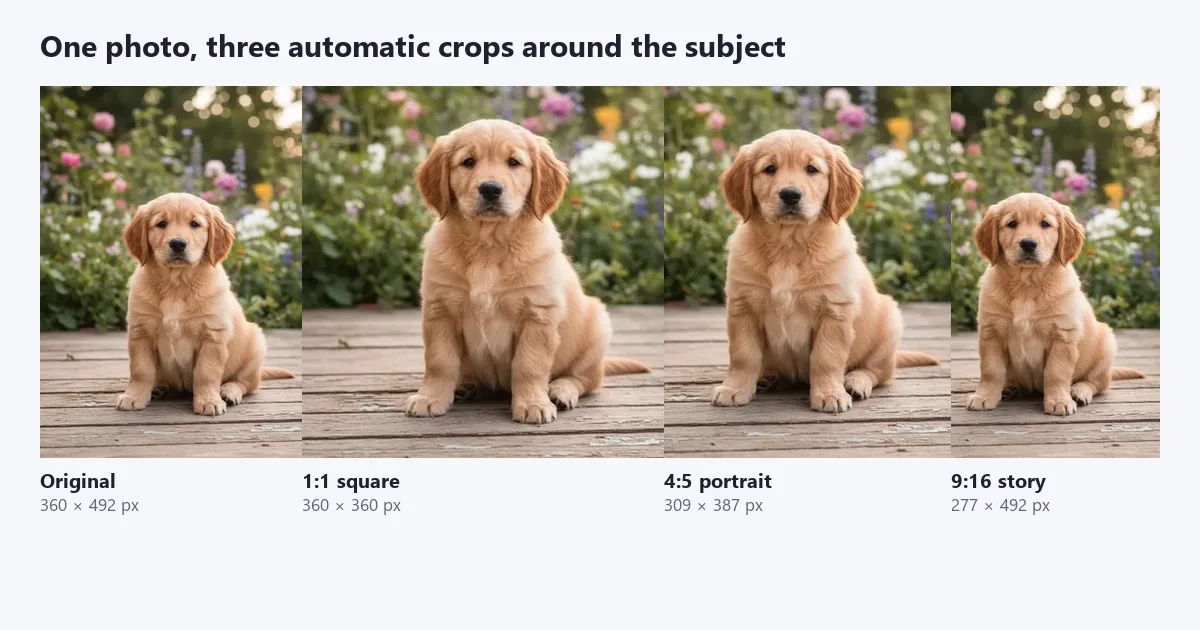
- Press Crop to the subject, then Download. The result shows its size in pixels, for example “Cropped to 309×387 px around the subject.” If the subject does not fit the shape, the tool tells you instead of cutting it off silently.
Nothing is uploaded: the AI model is downloaded once into your browser and runs there. The aspect ratios guide explains what the numbers such as 4:5 and 16:9 mean if they are new to you.
How does smart crop decide where to cut?
AI Smart Crop works in two steps. First a matting model, the same kind the Background Remover uses, works out which pixels belong to the subject. The tool draws the smallest rectangle around every pixel the model is more than half sure about. Then it builds the crop:
- It adds room around that rectangle: 5, 15 or 35 percent of the subject’s width and height on each side, for A little, Some or Plenty.
- It grows the box to the shape you chose, so a 1:1 crop of a tall subject becomes a square as tall as the subject plus its room.
- If that box is bigger than the photo, it shrinks it until it fits. The crop never goes outside the photo and the photo is never enlarged.
- It centres the box on the subject, or shifts it so the subject sits on a third, and slides it back inside the photo’s edges if needed.
The pixels you download are the original pixels inside that box, saved as a high-quality JPG (or PNG if your photo has a transparent background). Nothing is redrawn or invented.
There are two models. Fast is MODNet, about 25 MB, trained for people and portraits. Best edges is BiRefNet-lite, about 110 MB, which finds a wider range of subjects but takes longer. Both are listed with their sizes on the ImgVX AI docs page.
What happened when we smart cropped five real images?
We ran the live tool on 16 November 2026 in Microsoft Edge 157 on a Windows PC with no graphics card, so the models ran on the processor, which is the slowest case. The photos are the 360 × 492 pixel photos from our own home page, plus one image made by putting two of them side by side.
| Image | Model and shape | Result | Time | Verdict |
|---|---|---|---|---|
| Puppy on a deck, right of centre | Fast, 1:1 | 360 × 360 px | 3.2 s | Good: puppy centred, paws and ears in |
| Same puppy | Fast, 4:5 | 309 × 387 px | 3.2 s | Good |
| Same puppy | Fast, 9:16 | 277 × 492 px | 3.5 s | Good: the strip moved 39 px right of a centre crop to follow the puppy |
| Same puppy | Fast, 16:9 | 360 × 203 px | 3.1 s | Subject cut off; the tool said so |
| Same puppy | Best, tight | 309 × 384 px | 17.4 s | Good, almost the same as Fast |
| Yellow tram in a street | Fast, 1:1 | 20 × 20 px | 3.6 s | Wrong: Fast found no real subject |
| Same tram | Best, tight | 189 × 377 px | 12.1 s | Good: the whole tram |
| Lighthouse on a cliff | Best, 1:1 | 52 × 52 px | 13.6 s | Too small to use |
| Hummingbird and flower | Best, tight | 360 × 441 px | 15.7 s | Good: bird and flower kept |
| Puppy and tram side by side, 720 × 492 | Best, 1:1 | 384 × 384 px | 11.3 s | Picked the puppy |
Three lessons came out of it. With a clear subject, the crop was right on the first try and took about three seconds once the model was cached. The Fast model is for people and animals: on the tram it produced a useless 20-pixel square, while Best edges got the whole tram. And no model can make a good crop from a small subject in a wide scene; you need to choose that crop yourself.
Is smart crop better than a centre crop?
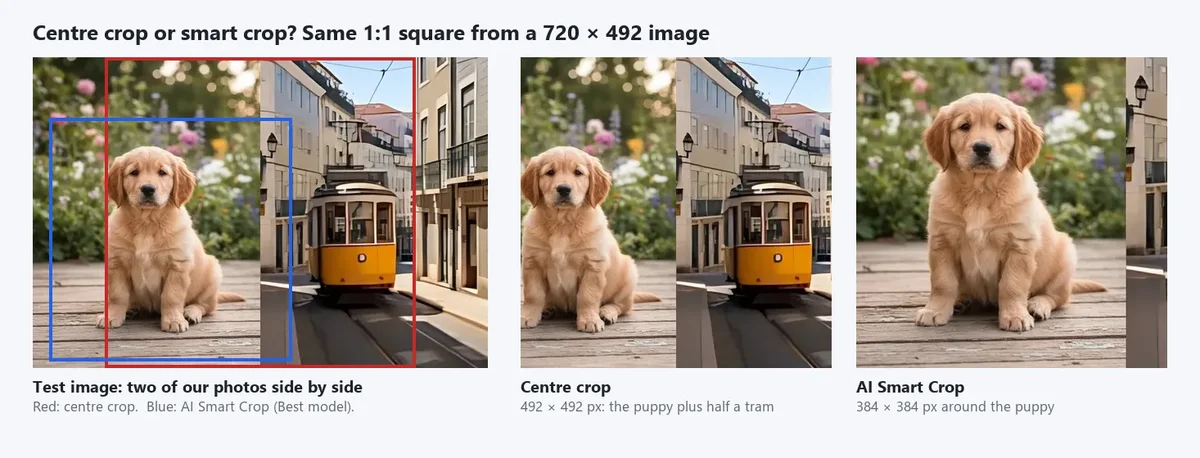
Most apps crop to a new shape by cutting equally from both sides, which keeps the middle of the photo. That works when the subject is in the middle, and fails when it is not. On our 720 × 492 test image, with a puppy on the left half and a tram on the right, a 1:1 centre crop is a 492 × 492 square from the middle: the whole puppy, half a tram and a hard edge between them. AI Smart Crop placed a 384 × 384 square on the puppy instead, with only a narrow strip of the second photo at the edge because the puppy’s room reached that far.
Smart crop is worth using when:
- the subject is off to one side, which is common in photos framed for a different shape;
- you need the same photo in several shapes, such as a 4:5 post, a 9:16 story and a 16:9 thumbnail;
- you have many product or profile photos and want the subject in the same place in each.
A centre crop, or the Image Cropper with its frame dragged by hand, is enough when the subject is already in the middle or when you want a particular part of the scene that is not the obvious subject.
Which crop shape should you use for each platform?
| Where the photo goes | Shape in AI Smart Crop | Notes |
|---|---|---|
| Instagram feed post, portrait | 4:5 | The tallest feed shape; see the social sizes guide for pixels |
| Instagram square post, profile pictures, marketplace thumbnails | 1:1 | Centred position suits products and faces |
| Instagram stories and reels, TikTok, YouTube Shorts | 9:16 | YouTube Help recommends 9:16 thumbnails for Shorts |
| YouTube video thumbnail, website banner, slides | 16:9 | YouTube Help recommends 16:9 for video thumbnails; see our YouTube thumbnail size article |
| Prints at 4 × 6 or 6 × 4 inches | 2:3 or 3:2 | The shape of most camera photos |
| Anything, as tight as possible | Tight around the subject | The subject’s own shape plus the room you chose |
YouTube’s figures come from YouTube Help, “Add video thumbnails”, read on 16 November 2026. After cropping, set the exact pixel size with the Image Resizer if a platform asks for one; the shape stays the same, so nothing is stretched.
A crop always loses part of the photo. If the subject is tall and you need a wide shape, or the other way round, you cannot keep all of it. In that case keep the whole photo on a blurred background with the No Crop tool, as explained in how to post a full picture on Instagram without cropping.
What do the room and position settings change?
Room around the subject sets how much background stays in. On the puppy photo at 1:1, A little gave a 326 × 326 crop that came close to the ears and tail; Some and Plenty both gave 360 × 360, because the photo is only 360 pixels wide and the crop cannot be wider than the photo. So Plenty only makes a difference when the photo has background to spare. Use A little for product shots and passport-style head crops, Some for most photos, Plenty for scenes where the setting matters.
Subject position chooses between Centred and On a third. On a third follows the rule of thirds: the subject is moved off the centre line, towards the side it already sits on, which usually looks more natural in a wide landscape crop. The tool only moves it when the crop is clearly wider (or taller) than the subject; in our portrait photos the crops already filled the width, so both settings gave the same result. Keep Centred for products, logos and profile pictures.
Model: start with Fast for a person or a pet. If the crop is too small, in the wrong place, or the subject is a car, a building, food or a product, switch to Best edges and press the button again.
When does smart crop get it wrong?
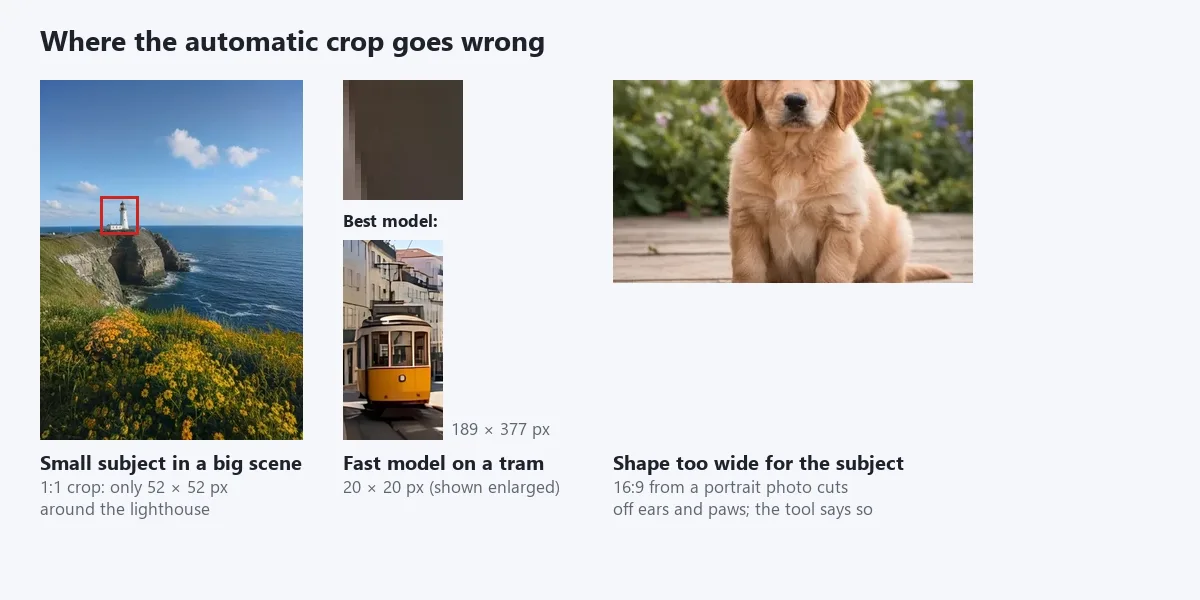
Every automatic crop depends on what the model calls the subject. In our tests it went wrong in three ways, and each has a simple fix:
- Small subject in a big scene. On the lighthouse photo both models marked only the lighthouse, so the 1:1 crop was 52 × 52 pixels: technically around the subject, useless as a picture. For landscapes, crop by hand with the Image Cropper, or straighten and crop with the tips in how to straighten a photo.
- The wrong model for the subject. Fast is made for people and portraits; on the tram it found a few dark pixels and returned a 20 × 20 crop. Best edges found the whole tram. If a crop looks far too small, change the model before anything else.
- A shape far from the subject’s own. A sitting puppy is taller than it is wide; a 16:9 crop of it lost the top of its head and its paws. The tool showed the note “The subject is bigger than that shape allows in this photo”. Choose a shape closer to the subject, or Tight around the subject.
Two more limits are worth knowing. With several subjects, the crop follows whatever the model marks; in our side-by-side test it picked the puppy and ignored the tram, and it does not let you choose. To find every object first, the AI Object Detector draws a box around each one. And a smart crop cannot add anything: a subject touching the edge of the photo stays at the edge of the crop.
Which smart crop tool should you use?
| Tool | Where the photo goes | What you get | Limits stated on its page (16 November 2026) |
|---|---|---|---|
| ImgVX AI Smart Crop | Stays in your browser | One crop at 1:1, 4:5, 9:16, 16:9, 3:2, 2:3 or tight, room and position settings, two models | None; free, no account. One shape per run |
| Cloudinary Social Media Smart-Crop Pack | Uploaded | Eight social media crops of one photo in one ZIP, JPG, PNG or WebP | JPG, PNG or WebP up to 20 MB; the exact ratios of each crop are not listed |
| Wallpapers.com AI Smart Crop | Its page says it runs in the browser | Seven preset ratios or a custom one, a frame you can drag | 1 crop a day without an account, 5 with a free account; 25 MP on the free tier |
| Dreamina AI crop | Uploaded, account needed | A crop described in a text prompt; can generate new scenery to fill a ratio | Daily free credits; generated areas are not your photo |
| ImgVX Image Cropper | Stays in your browser | A crop you place yourself, with presets and exact sizes | Manual, no subject detection |
For one photo in several shapes and nothing private in it, an upload pack is quick. For personal photos, products before launch or anything you would rather not send to a server, the browser tool keeps the file on your device. When the subject is unusual, small, or one of several, a manual crop is still the most reliable.
Troubleshooting
| What you see | Cause | Fix |
|---|---|---|
| A tiny crop, a few dozen pixels | The model found only a small part, or the subject is small in the scene | Switch Model to Best edges; for landscapes, crop by hand |
| “The subject is bigger than that shape allows” | The shape is much wider or taller than the subject | Choose a shape closer to the subject, or Tight around the subject |
| “No clear subject was found in this photo” | Nothing stood out from the background | Try Best edges, or use the Image Cropper |
| The crop is on the wrong person or object | Several subjects; the box follows what the model marked | Use a wider shape that holds both, or crop by hand |
| Plenty of room made no difference | The crop already fills the photo’s width or height | Expected; the crop never goes past the photo’s edges |
| The result looks soft when posted | The crop has fewer pixels than the platform shows | Upscale with the Image Upscaler, then resize to the exact size |
| The first run is slow | The model downloads once (about 25 MB Fast, 110 MB Best) | Wait once; later runs start straight away |
Other tools that run on your device in the same way are listed in the free AI image editing guide.
Questions
What is smart crop?
Smart crop is cropping that first finds the subject of a photo, such as a person, a pet or a product, and then places the crop around it, instead of cutting a fixed rectangle from the middle. ImgVX AI Smart Crop does this with an AI matting model in your browser, at 1:1, 4:5, 9:16, 16:9, 3:2, 2:3 or tight around the subject.
How do I crop a photo around the subject automatically for free?
Open the free AI Smart Crop, drop in the photo, choose the shape and how much room to leave, and press Crop to the subject. The crop is placed around what the AI sees as the subject and downloads as a full-resolution JPG, with no watermark and no sign-up. The photo is never uploaded.
Does smart crop reduce the quality of my photo?
No. The crop keeps the original pixels and does not resize them, so it is exactly as sharp as the photo. It does make the image smaller in pixels, because cropping removes the edges: in our test a 360 × 492 photo became a 360 × 360 square. Upscale afterwards with the Image Upscaler if you need more pixels.
Why did smart crop give me a tiny image?
The AI found only a small part of the photo as the subject. That happens with a small subject in a big scene, such as a lighthouse on a cliff (our crop was 52 × 52 pixels), and with the Fast model on things that are not people or animals. Switch the Model to Best edges, and if the subject is still small, crop by hand with the Image Cropper.
What happens if there are two people or objects in the photo?
The crop is built around the outline of everything the AI marks as subject. In our test with a puppy and a tram side by side, both models chose the puppy. If the crop picks the wrong one, or you want both, use a wider shape, or crop by hand with the Image Cropper.
Which shape should I choose for Instagram, TikTok or YouTube?
Use 4:5 for a portrait Instagram post, 1:1 for a square post or a profile picture, 9:16 for stories, reels, TikTok and YouTube Shorts, and 16:9 for a YouTube video thumbnail. YouTube Help recommends 16:9 thumbnails for videos and 9:16 for Shorts. Exact pixel sizes are in our social media image sizes guide.
Is smart crop the same as content-aware fill or uncrop?
No. Smart crop only removes pixels around the subject; nothing is invented. Uncrop, or AI outpainting, does the opposite and adds new pixels around the photo to make it bigger. To change a photo’s shape without cutting anything off, see how to uncrop a photo or use the No Crop tool.